Windows Admin Center (WAC) is a new way introduced by Microsoft to manage your servers, workstations, and clusters.
Using TLS between WAC gateway and servers
WAC gateway is the tool you install on a server or workstation to act as a gateway between administrators and servers/stations/clusters. During its installation, you will be asked to choose between regular or encrypted communication between your assets and this gateway. As we should all do, I did choose encrypted communication.
Choosing TLS implies you to deploy a valid certificate for your server to encrypt its gateway’s connection. This certificate must be trusted by your gateway machine obviously. Here the process to do it, using a self-signed one though.
First, if its a workstation and not a server, you need to enable PSRemoting
Enable-PSRemotingThen allow port 5986 between your server and the gateway (This must be done on the server, because installing WAC on your gateway should have fixed that already.
New-NetFirewallRule -DisplayName "WinRM HTTPS" -Direction Inbound -LocalPort 5986 -Protocol TCP -Action AllowUsing a PKI infrastructure
If your organization has a PKI infrastructure, you will need to configure it to delivers certificates to your servers and workstations.
Configure your subordinate CA to delivers WinRM certificates
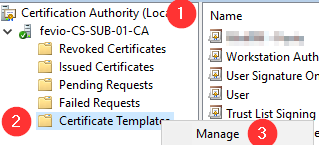
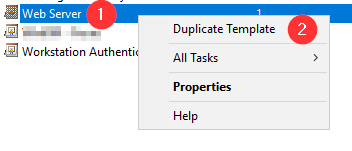
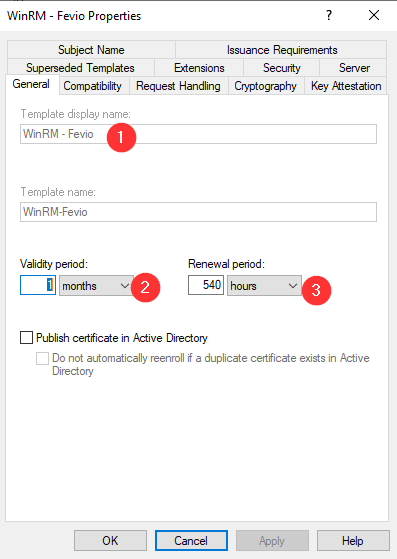
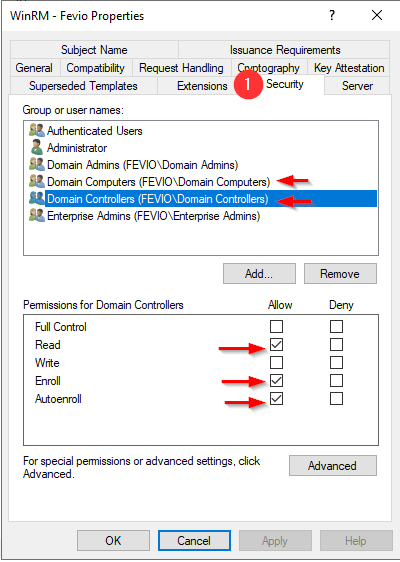
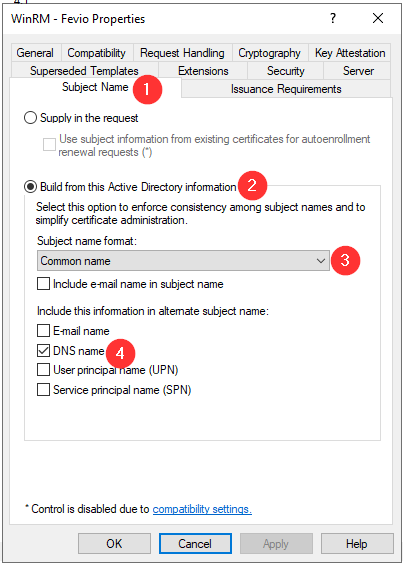
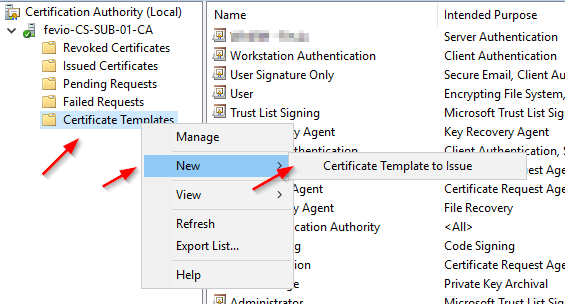
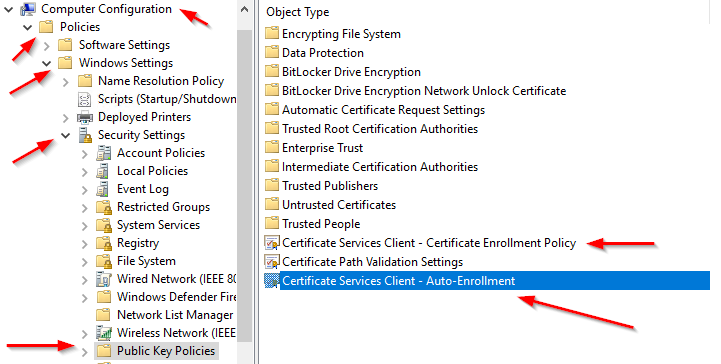
Refresh the GPO on one of the server you want to remotely manage:
gpupdate /forceCheck on the subordinate CA if the certificate has been issued properly, using the MMC view:
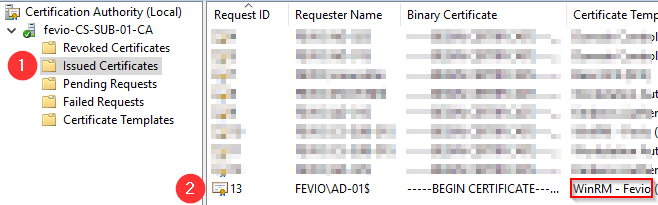
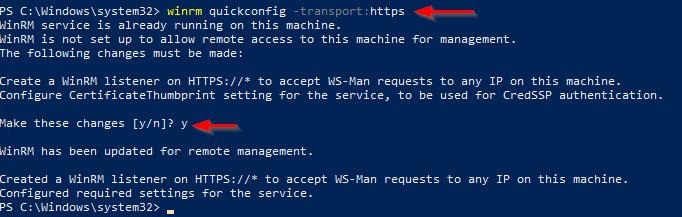
Go back on the server you to remotely access using WAC, and run with an elevated PowerShell the following command to create an HTTPS listener using the new certificate:
winrm quickconfig -transport:httpsNote that you can run the command above through a remote Powershell session!
Without an internal PKI
Without a PKI, you will have to generate a self-signed certificate then import it on your WAC gateway, that’s a bit dirty but if you just want to try, go ahead with the following:
Create a self-signed certificate (update the FQDN part, like myad-001.fevio.fr):
New-SelfSignedCertificate -CertStoreLocation Cert:\LocalMachine\My -DNSName "<FQDN>"Then create an HTTPS listener for WinRM (Update FQDN and Thumbprint accordingly)
CMD /C 'winrm create winrm/config/Listener?Address=*+Transport=HTTPS @{Hostname="<FQDN>";CertificateThumbprint="<Thumbprint>"}'Export this certificate to be imported into the gateway’s side (Update FQDN and Thumbprint accordingly):
$Cert = Get-ChildItem -Path Cert:\LocalMachine\My\<Thumbprint>
Export-Certificate -Cert $Cert -FilePath "C:\<FQDN>.crt" -Type CERT
Then add the certificate to the gateway:
Go through “Manage computer certificate” then “Trusted Root Certification Authorities” then import your cert in that folder.
Run WAC and should be able to connect now!