Monthly Archives: July 2020

Nessus: Replace the default GUI Certificate with a custom one

Usually, providers don’t spend much time on offering a simple and detailed way to update the self-signed certificate they provide with their appliances.

I was disapointed to see that Nessus, which will basically complains all the time about the wrong certificate mismatch it will discover on your networkd, doesn’t provide an easy way to replace its own ugly certificate.

The funny part is, you will see it at least once within the scan result, because of this wrong certificate, what a shame isn’t it?!

Generate a custom cert and a key, using Base 64 encoding

As the title says, you can use whatever way you want to generate a new .cert and a new .key file, that’s mandatory.

The following is related to my own way to do it, I’m writing that here for the records, I suggest you to skip to the next heading.

  • Use OPNSense Certificate tool to generate a CSR
  • Submit the CSR to the AD CS certsrv tool and get your certificate, base 64 encoded
  • Download from OPNSense the associated .key

Install the certificate and the key on your Nessus server

First, stop the Nessus daemon, on Ubuntu 20.04:

/etc/init.d/nessusd stop

Edit the curent certificate with the following command:

vim /opt/nessus/com/nessus/CA/servercert.pem

Remove its content, and replace it with the content of your new certificate.

Then, edit the former key file, with the command below:

vim /opt/nessus/var/nessus/CA/serverkey.pem

Do the same thing, replace the content with the one contained on your key file.

Eventually, start the Nessus server to get your server back online:

/etc/init.d/nessusd start

That was not complex, but I would have appreciate:

  • A way to generate the CSR from the Nessus GUI
  • An obviously, a way to import the certificate as well
How to fix “CSP Loading” when using web enrollment through Windows AD CS

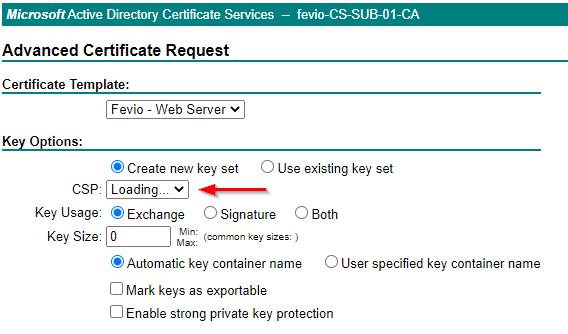
When I tried to generate a new certificate for one of my webservers, I encountered an issue with the certsrv page, which was stuck with a CSP loading message:

You can wait forever here, nothing will happen

It seems related to a missmatch between the Internet Explorer security options and the security zone where your certsrv site is placed.

There a different ways to fix that, here the one that fits my needs:

  • Connect to a remote session to My-Subordinate-Server
  • Open Internet explorer
  • Browse to https://my-subordinate-ca/certsrv
  • Open Internet Explore settings
  • Got to Security Tab
  • Click on Trusted Sites
  • Add https://my-subordinate-ca/certsrv
  • You’re done!

OPNSense: install a legit certificate from your PKI

The following post will explain how to generate and install a valid certificate using your PKI infrastructure. This way, you won’t have a warning message while accessing your appliance through HTTPS.

Generate the Certificate Signing Request (CSR)

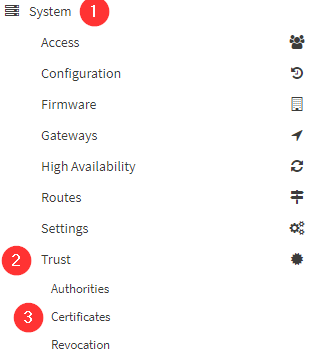
First, you will need to generate a CSR from your OPNsense box, to do so, navigate to:

Click the +Add button which is on the top right corner, then choose Create a Certificate Signing Request

Populate the form with the information you want, choose a proper Descriptive Name and Common Name that match your device (opnsense.fevio.fr for instance)

Once it is generated, you will see the list of certificates plus the new one you have requested. Click on the pencil located on the very right of that line, and copy/paste the CSR text.

Submit you CSR to your PKI

Assuming you already have deployed the Web Enrollment role on your PKI infrastructure, go to its URL, that should be something like: https://my-subordinate-ca.fevio.fr/certsrv

Note that you need to connect as a user with the proper rights, not an administrator for instance. This would be more documented later.

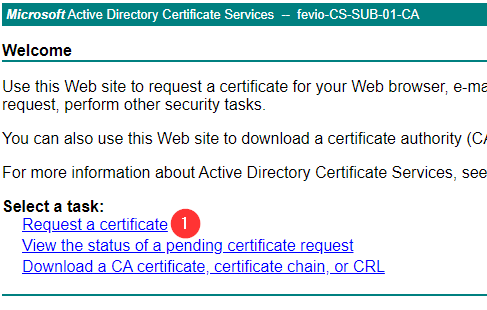
Click on Request a certificate
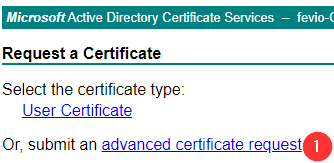
Choose Submit an advanced certificate request
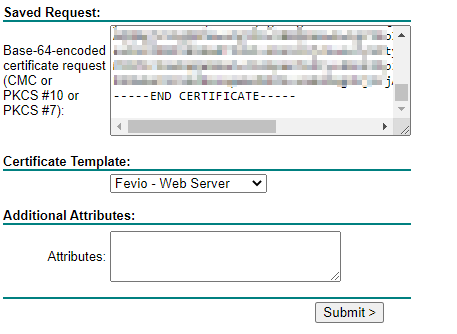
Paste the text from OPNSense (The CSR request) and choose the proper template (Here it’s a deviation from the Web Server certificate template)
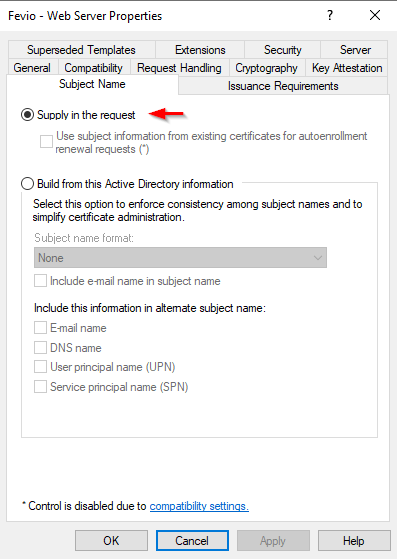
For the records, here the Subject Name configuration for the Web Server template
  • Once the certificate is generated, choose to export it using Base 64 encoding
  • Then, before pasting its content to your OPNSense, do the following:
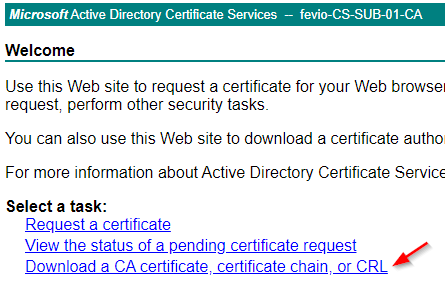
Return to your CertServ server to download your Subordinate CA
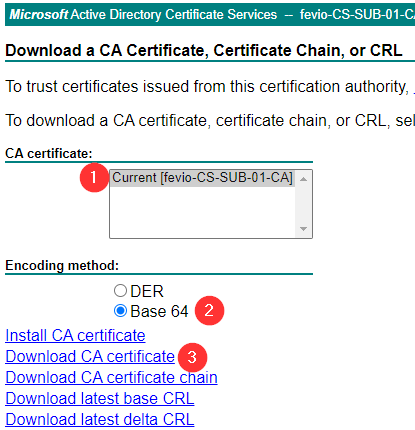
Download the Subordinate CA using Base 64 encoding

Then, open a text editor, copy the content of your OPNSense certificate at the begining of this empty file, and add the content of the Subordinate CA at the end. This way, you will have the proper chain included in one file.

Return to your OPNSense, and paste the whole content as the response from your CA.

Define the new cert as GUI cert

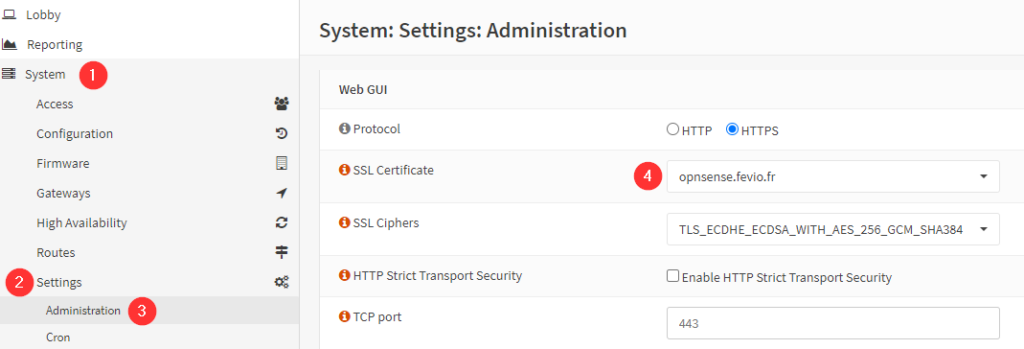
The last step is easy, go to the following menu and use the scroll down menu to choose your new CA 😀

Raspbian: Disable mDNS / ZeroConf

Using PiHole on a Raspberry Pi, powered by Raspian, I got to clear only one vulnerability spotted by my security scanner.

This vulnerability was about mDNS / ZeroConf, here the details:

Description

The remote service understands the Bonjour (also known as ZeroConf or mDNS) protocol, which allows anyone to uncover information from the remote host such as its operating system type and exact version, its hostname, and the list of services it is running.

This plugin attempts to discover mDNS used by hosts that are not on the network segment on which Nessus resides.

Risk Information

Risk Factor: MediumCVSS Base Score: 5.0CVSS Vector: CVSS2#AV:N/AC:L/Au:N/C:P/I:N/A:N

Solution

One of them is to filter incoming traffic to UDP port 5353, if desired. As I don’t need that feature, I decided to disable it for good.

Edit avahi-daemon.conf file:

vi /etc/avahi/avahi-daemon.conf

Find and replace yes by no on the following lines:

[...]
use-ipv4=no
use-ipv6=no
[...]

Then, reboot your Pi and launch a remediation scan to confirm the workaround.

Nessus Essentials

Nessus is a security product provided by Tenable, that will scan networks in order to find vulnerabilities among hardware, servers, and more. Tenable provides a free version of this product, called Nessus-Essentials, which allow you the following for free:

  • Asset discovery scanning limited to 16 IPs for vulnerability assessment.
  • The power of Tenable Research. Our research team works closely with the security community to discover new vulnerabilities and provide insights into published vulnerabilities to help organizations quickly detect them in their environment. These insights are built into Nessus Essentials to keep you up to date on the latest vulnerabilities. 
  • No time limit for usage. Use Nessus Essentials for as long as it meets your needs. Should you require advanced features and the ability to scan more than 16 IPs, you can seamlessly upgrade to Nessus Professional.
  • Access to the Nessus training curriculum. Enjoy access to Tenable University training classes to help you understand and take full advantage of Nessus Essentials.  
  • Community Engagement. Engage with your peers and the Tenable team in the Tenable Community to get your questions answered quickly and get tips and tricks for optimizing your product. 

Prerequisites

In order to scan up to 50,000 hosts per scan (Huge for a home lab or small office), the prerequisites provided by Tenable are the following (Nessus 8.11.0):

CPU: 4 2GHz cores

Memory: 4 GB RAM (8 GB RAM recommended)

Disk space: 30 GB, not including space used by the host operating system

A Windows or Linux server (I have chosen to run it on the latest Ubuntu 20.04 LTS)

After having installed the .deb on your Linux server

In order to start Nessus, run the following command:

/etc/init.d/nessusd start

Then go to https://nessusIPaddress:8834/ to configure your scanner

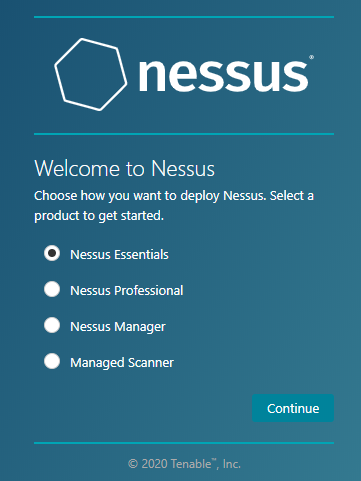
After Nessus has been initialized, select Essentials:

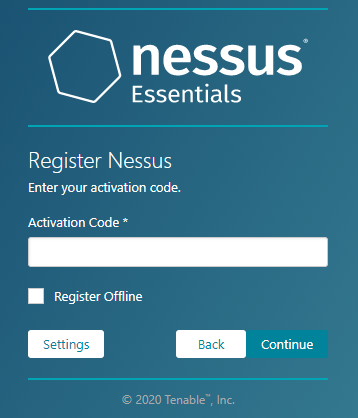
Skip the next step if you have already an activation code, then provide it:

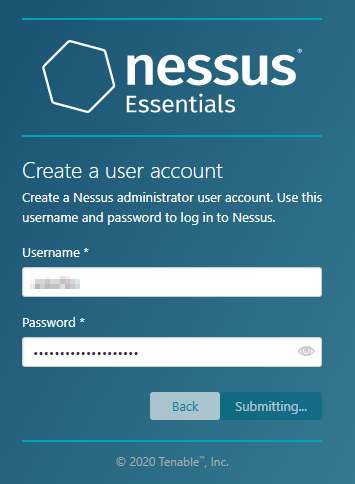
Create a new account for the first scanner administrator

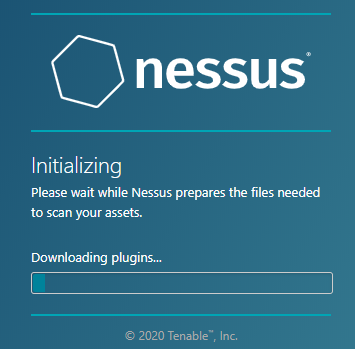
Then wait until the installation is finished:

Plugins will be compiled and that can take a while depending on your server

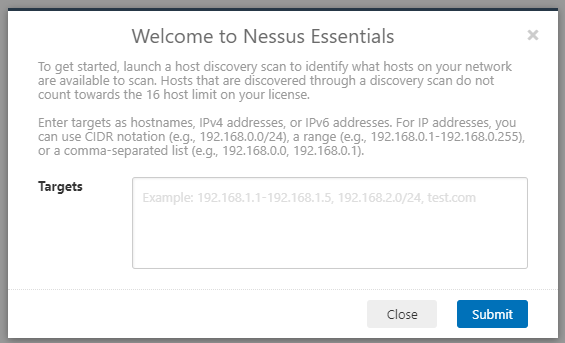
After you logged in, you will have to decide which IPs to scan:

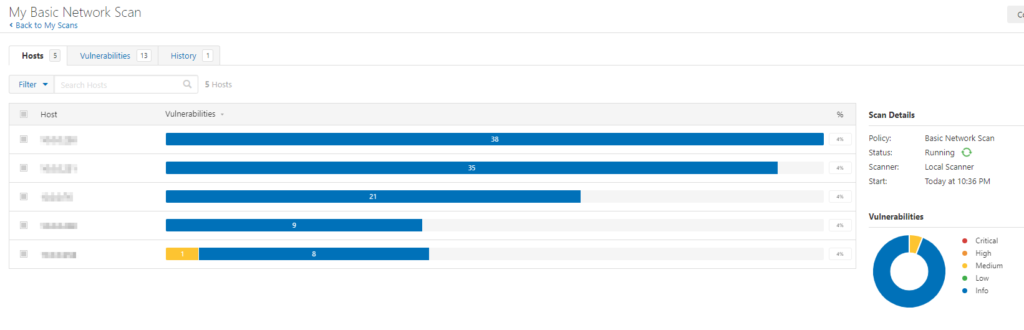
Then, Nessus will scan the networks you gave it, find devices and computers, and you will be ask to choose the 16 IPs you want to scan. The scan will then starts and the result will be shown like this:

Powershell: How to run commands on a remote server

If you want to run PowerShell commands remotely, this post could help you.

Checking if you already have access to the remote server, from the workstation you want use:

Test-WsMan COMPUTERNAME

You should get something like that:

wsmid           : http://schemas.dmtf.org/wbem/wsman/identity/1/wsmanidentity.xsd
ProtocolVersion : http://schemas.dmtf.org/wbem/wsman/1/wsman.xsd
ProductVendor   : Microsoft Corporation
ProductVersion  : OS: 0.0.0 SP: 0.0 Stack: 3.0

If you don’t have access, use the following command to enable PSRemoting on the server you want:

Enable-PSRemoting -SkipNetworkProfileCheck

Note that it won’t work if the server or workstation is using a public network, the command check network profiles before applying this change. However, I got a weird behavior where none of my network profiles were using a public profile but PSRemoting was telling me the opposite. To workaround this, use the following command:

Enable-PSRemoting -SkipNetworkProfileCheck -Force

Running a command from a station to a server

Use the following command

Invoke-Command -ComputerName COMPUTERNAME -ScriptBlock { COMMAND } -credential USERNAME

Opening a remote PowerShell session

Enter-PSSession -ComputerName COMPUTERNAME -Credential USER

OPNSense Insight

OPNSense: Fix Insight feature issue when getting “No data available”

Not so long ago, I switched my firewall/routing/all-in-home network solution from PfSense to OPNSense. While it was working quiet well for months, I have noticed that the Insight feature was showing me a “No data available”. I’ll explain how I worked around it, maybe some other solutions exist though.

Why this happened?

After some investigation, I found that issue was caused by the latest upgrades I applied. I must admit this is a bit disappointing since I don’t update OPNSense configuration very often, actually, it was working for 3 months without any modification… Anyway, let’s say this is not important enough to be a real bumper, but I’m still thinking that maybe other features were broken and I just didn’t discover them yet…

What is broken exactly?

It seems the issue is related to a Sqlite database corruption, first I checked the flowd service using that command under an elevated shell:

service flowd_aggregate status

And the service was not running, so I checked the log under System>Log files>General to see that I had a lot of lines involving an issue with flowd_aggregate service.

Eventually, going under Reporting>Settings then hit Reset Netflow Data did the job. Don’t forget to restart the flowd_aggregate service too. Doing that, you will lose former data, and just so you know, I tried the Repair Netflow Data with no joy.