Monthly Archives: August 2020

OpenVPN server for mobile devices, TLS 1.3, and Ubuntu 20.04

This post is about configuring an OpenVPN server using an external Windows Certificate Server. We will use 443/TCP to connect our clients, in order to be more firewall friendly when connecting from unknown sites.

Package installation

Install the package, we won’t need the RSA package as we are going to use our own PKI.

apt get install openvpn

Configure routing for IPv4

Edit /etc/sysctl.conf and add the following lines at the botton:

net.ipv4.ip_forward = 1
net.ipv4.conf.all.accept_redirects = 0
net.ipv4.conf.all.send_redirects = 0

Then run this command to apply those change:

sysctl -p /etc/sysctl.conf

Later, to see if packets are hitting this rule, use the following command:

watch iptables -t nat -v -L POSTROUTING -n --line-number

Certificates part

Don’t use the /etc/openvpn/server folder as the startup script won’t use it, instead, let your server files in the /etc/openvpn folder

In order to configure your Openvpn server, generate a specific certificate for it. Get the key and the cert to your /etc/openvpn folder along with the intermediate root certificate.

  • ca.crt = intermediate root certificate including the root certificate
  • server.crt = openvpn public certificate
  • server.key = openvpn certificate key

Generate the ta.key and dh2048.pem

Those file will be used to secure the connection.

openvpn --genkey --secret ta.key
openssl dhparam -out dh2048.pem 2048

Install your root CA certificate

We need our server to trust our CA, in order to do that, do the following:

mkdir /usr/share/ca-certificates/extra
cp root.crt /usr/share/ca-certificates/extra/root.crt
dpkg-reconfigure ca-certificates

On the interactive screens, don’t forget to select the new certificate to import.

To ensure you setup this part properly, pick the openvpn certificate, including the root certificate (you need the whole chain here) and run this command on it:

openssl verify server.crt
server.crt: OK

Revoked certificate management

In order to be able to deny authentication to revoked certificate, you need to configure your OpenVPN server to read and verify certificate against the CRL list of your PKI.

Sadly, it seems openvpn only offers a local CRL file check, so you won’t be able to set the crl-verify with the CRL URL emplacement.

Instead, you need to download that CRL file ‘manually’ and also convert it from CRL to PEM in order to OpenVPN to read it.

Here how to do that:

From your OpenVPN folder:

# Here I had to fake the resolution, but you can remove that part which was specific to my needs
curl --resolve pki.mydomain.fr:80:192.168.1.221 http://pki.mydomain.fr/cdp/domain-CS-SUB-01-CA.crl --output domain-CS-SUB-01-CA.crl

# Then use OpenSSL to convert:
openssl crl -in domain-CS-SUB-01-CA.crl -inform DER -out domain-CS-SUB-01-CA.pem

Now you got the proper CRL file, go ahead and check within the server.conf file on the next step, how to set the crl-verify option:

Configure OpenVPN

/etc/openvpn/server/server.conf

port 443
proto tcp
dev tun
ca ca.crt
cert server.crt
key server.key
dh dh2048.pem
topology subnet

# The CRL file to check certificate validity
crl-verify mydomain-CS-SUB-01-CA.pem

server 10.8.0.0 255.255.255.0
ifconfig-pool-persist /var/log/openvpn/ipp.txt

# Your custom routes
push "route 192.168.1.0 255.255.255.0"
push "route 172.16.1.0 255.255.255.255"

push "redirect-gateway def1 bypass-dhcp"

# Custom DNS servers
push "dhcp-option DNS 9.9.9.9"

keepalive 10 120
cipher AES-256-GCM

# For extra security, 0 for the server, 1 for the clients
tls-auth ta.key 0 # This file is secret

# TLS settings enforcment
tls-version-min 1.3 'or-highest'

user nobody
group nogroup
persist-key
persist-tun
status /var/log/openvpn/openvpn-status.log
log         /var/log/openvpn/openvpn.log
log-append  /var/log/openvpn/openvpn.log
verb 3

# Because of TCP we need to disable this setting:
explicit-exit-notify 0

User client profile

client
dev tun
proto tcp
remote vpn.mydomain.fr 443
resolv-retry infinite
nobind
persist-key
persist-tun
cipher AES-256-GCM
verb 3
key-direction 1

<ca>
-----BEGIN CERTIFICATE-----
*** Subordinate CA ***
-----END CERTIFICATE-----
-----BEGIN CERTIFICATE-----
*** Root CA ***
-----END CERTIFICATE-----
</ca>

<cert>
-----BEGIN CERTIFICATE-----
*** User certificate ***
-----END CERTIFICATE-----
</cert>

<key>
-----BEGIN RSA PRIVATE KEY-----
*** User key ***
-----END RSA PRIVATE KEY-----
</key>

<tls-auth>
#
# 2048 bit OpenVPN static key
#
-----BEGIN OpenVPN Static key V1-----
*** Content of the secret ta.key available on the server ***
-----END OpenVPN Static key V1-----
</tls-auth>

Auto start OpenVPN server on Ubuntu

And start OpenVPN:

systemctl restart openvpn@server

Check OpenVPN status:

systemctl status openvpn@server

Install Terraform on Ubuntu 20.04

This post resume for my own convenience, what to do in order to install Terraform on an Ubuntu machine.

Add HasiCorp GPG key:

curl -fsSL https://apt.releases.hashicorp.com/gpg | sudo apt-key add -

Add the repository:

sudo apt-add-repository "deb [arch=amd64] https://apt.releases.hashicorp.com $(lsb_release -cs) main"

Eventually, update and install the terraform package:

 sudo apt-get update && sudo apt-get install terraform

Setup OPNsense 20.7 for IPsec mobile VPN (AkA Road-Warrior)

Since I migrated my former PfSense appliance to OPNsense, I had to reconfigure many services. Today, I’ll explain how I configured it to connect your Android devices using the native IPsec client (Obviously, this should work with other mobile and device brands)

Note that the cipher suites and other security protocols used in this post are set according to what is available on my remote devices. Thus, you would be able to higher those protocols depending on your hardware support.

Configuring OPNsense

Mobile Clients

Access your OPNsense appliance, then go to VPN > IPsec > Mobile Clients and configure it using the following options. Note that I have listed only what that matters, feel free to play with those options.

  • Virtual IPv4 Address Pool: A brand new network to be used by your remote devices
  • DNS Servers: Set your local DNS servers here
  • Phase 2 PFS Group: let this off

Save and apply changes before moving on. You should see a “No Phase 1 found” or a similar message, if so, click on it to access the next step.

Tunnel Settings

Go to VPN > IPsec > Tunnel Settings to create your tunnel interface.

General information

Again, use the following elements to configure your phase 1:

  • Connection method: Start on traffic
  • Key Exchange version: v1 (v2 was not supported for Mobile client)
  •  Interface: WAN

Phase 1 proposal (Algorithms)

  • Encryption algorithm: AES 256
  • Hash algorithm: SHA256
  • DH key group: 2 (1024bits)
  • Install policy: checked (Let the other checkbox unchecked)

Save then apply your settings.

Phase 2 configuration

Go back to VPN > IPsec > Tunnel Settings

On the right side of the tunnel you just have created, you should see a + button, click on it:

  • Mode: Tunnel IPv4
  • Type:
    • Network: you will be able to set a global network (0.0.0.0/0) which will allow your devices to access all your different networks (like LAN and Internet)
    • LAN or any subnet you have: Your devices won’t be able to join any other subnet
  • Protocol: ESP (ESP is encryption, AH is authentication only)
  • Encryption algorithms: aes256gcm16
  • Hash algorithms: SHA512
  • PFS key group: off

Save the configuration, and apply it as always.

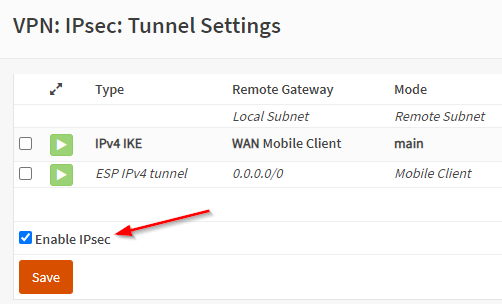
Finally, on the VPN > IPsec > Tunnel Settings page, click on the Enable IPsec button then save to actually start IPsec:

On the same page, you should see the green arrow telling you the service is running properly:

Top right of the Tunnel settings page

Firewall configuration

We need to configure the firewall by adding rules and NAT policy.

Rules

WAN interface

We need to allow our remote clients to access our IPsec server, to do so, create the following rules:

IPsec ESP
  • Protocol: IPv4 ESP
  • Other settings: *
IPsec ISAKMP
  • Protocol: IPv4 UDP
  • Port: 500 (ISAKMP)
  • Other settings: *
IPsec NAT-T
  • Protocol: IPv4 TCP/UDP
  • Port: 4500 (IPsec NAT-T)
  • Other settings: *

IPsec interface

IPsec to LAN net

Here you have to decide which protocols you want to allow from your remote clients to your LAN devices, don’t forget to allow at least DNS if your custom DNS servers are hosted on that subnet.

IPsec to WAN net

Same as above, you’re in charge to choose which services you want to authorize.

NAT

We need to update the default configuration in order to enable NAT between our IPsec interface and the WAN interface. To do so, open the Firewall > NAT > Outbound

  1. If not already done, select “Hybrid outbound NAT rule generation” then apply changes to be able to add manual rules.
  2. Add a new rule with the following information:
    • Interface: WAN
    • Source address: your remote devices VPN network (the one you created at the beginning)

Android configuration

Here an example using a Galaxy S7 and its native VPN client.

  • Go to Settings > Connections > More connection settings > VPN
  • Click Add VPN
  • Configure your VPN with the following:
    • Name: it’s up to you
    • Type: IPSec Xauth PSK
    • Server Address: if using a DNS name, you won’t be able to use the Always-on feature, so use your static public IP if you are lucky enough
    • IPsec pre-shared key: use the key you have choose before
    • Username: this depends on the Authentication backend you selected

How to troubleshoot ?

If you go to VPN> IPsec > Log File you will be able to see if your remote devices are hitting your server, and see issues with proposals mismatch, authentication issues and more.

I would also recommend not to be too strict at the beginning, regarding the cipher suites and other security protocols. Set them wide then tweak your configuration one security setting at a time.

If you can reach your LAN devices but Internet when connected, check the NAT and firewall rules.

How to control your Windows Server’s cipher suites with IIS Crypto

When you are in charge of fixing vulnerabilities or troubleshooting software encrypted communication issues, you often have to deal with upgrading or fixing cipher suites. It’s often complex depending on the vendor, to access, customize or even know which cipher suites are available.

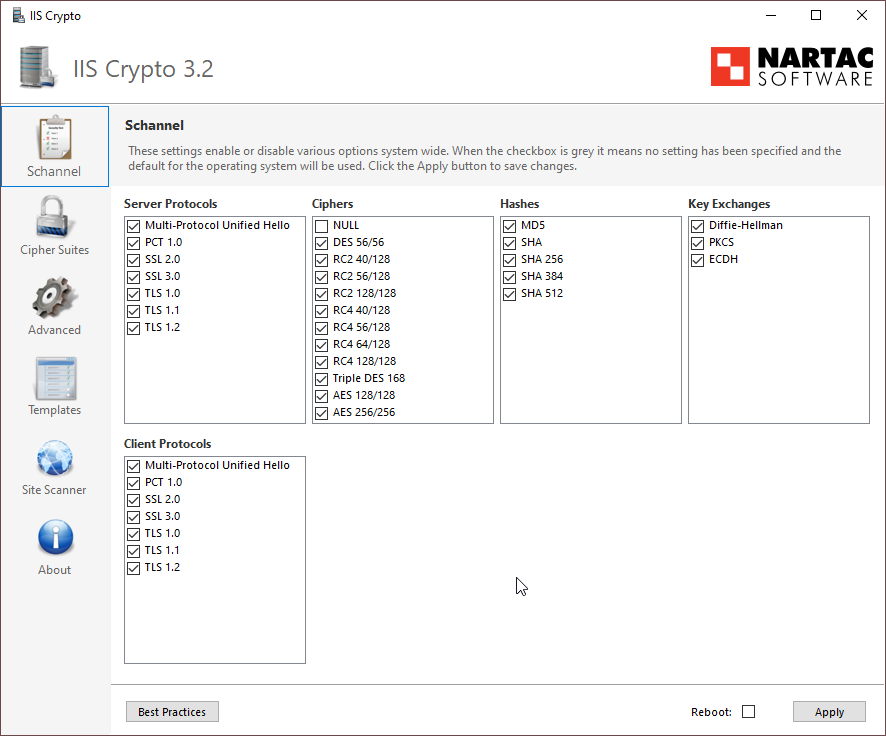
For Windows Server, a company called Nartac provides a free tool called IIS Crypto, that will help you configure your servers security in a snap!

Using IIS Crypto with a GUI

Nartac offers two versions of its tool, the one which come the GUI and the CLI version. I would recommand to install the GUI version to get familiar with it, you will see which suites and schannel are available on your system, understand how the product works, and finally you will be able to create custom templates to use with the GUI or, even better, with the CLI.

IIS Crypto GUI

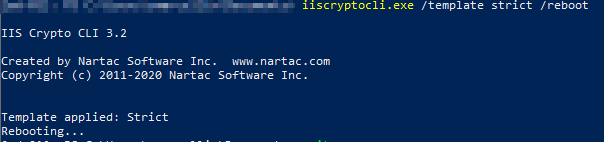
IIS Crypto CLI

Once you’re comfortable with IIS Crypto, and especially if you have many servers to manage, I would highly recommend going with the CLI version.

You can deploy IIS Crypto through chocolatey and then apply a pre-existing template, or a custom one depending on your needs:

Here, I apply an embedded template (Strict) while asking for a reboot for this template to be applied immediately