Monthly Archives: June 2021

Guacamole server using Docker

version: "2"
services:
  postgresql:
    image: 'postgres:latest'
	container_name: guacamole_db
	ports:
      - 5432:5432
	environment:
      POSTGRES_USER: guacamole_postgres # The PostgreSQL user (useful to connect to the database)
      POSTGRES_PASSWORD: YourOwnPassword # The PostgreSQL password (useful to connect to the database)
      POSTGRES_DB: guacamole # The PostgreSQL default database (automatically created at first launch)
  guacd:
    image: "guacamole/guacd"
    container_name: guacd
    hostname: guacd
    restart: always
    volumes:
      - "/data/shared/guacamole/guacd/data:/data"
      - "/data/shared/guacamole/guacd/conf:/conf:ro"
    expose:
      - "4822"
    ports:
      - "4822:4822"
    network_mode: bridge

  guacamole:
    image: "guacamole/guacamole"
    container_name: guacamole
    hostname: guacamole
    restart: always
    volumes:
      - "/data/shared/guacamole/guacamole/guac-home:/data"
      - "/data/shared/guacamole/guacamole/conf:/conf:ro"
    expose:
      - "8080"
    ports:
      - "8088:8080"
    network_mode: bridge
    environment:
      - "GUACD_HOSTNAME=localhost"
      - "GUACD_PORT=4822"
      - "POSTGRES_PORT=5432"
      - "POSTGRES_DATABASE=guacamole"
      - "GUACAMOLE_HOME=/data"
      - "POSTGRES_USER=guacamole_postgres"
      - "POSTGRES_PASSWORD=YourOwnPassword"
      - "POSTGRES_HOSTNAME=localhost"

Go ahead and spin it

docker-compose up -d

Now we need to init the database

docker run --rm guacamole/guacamole /opt/guacamole/bin/initdb.sh --postgresql > initdb.sql
docker container cp initdb.sql guacamole_db:/
docker container exec -it guacamole_db psql --dbname=guacamole --username guacamole_postgres -f /initdb.sql

Below the old way version (not working properly regarding the guacacd part)

Here a really quick draft to setup a Guacamole RDP server using a docker container and PostgreSQL

# Get the latest image
docker pull guacamole/guacamole

# Create volumes to persist data
docker volume create guacamole-vol-app
docker volume create guacamole-vol-db

# Create the dedicated network
docker network create --driver bridge guacamole-net

Configure the database:

# Spin up the container
docker run --detach --restart unless-stopped -v guacamole-vol-db:/var/lib/postgresql/data --network guacamole-net --name gcm-db-01 -e POSTGRES_PASSWORD=aRandomPasswd postgres

# Connect to the container
docker exec -it gcm-db-01 bash

# Then to PostgreSQL
psql -U postgres

# Create the DB
CREATE DATABASE guacamole WITH ENCODING 'UTF8' LC_COLLATE='en_US.UTF-8' LC_CTYPE='en_US.UTF-8' TEMPLATE=template0;

create user guacamole_postgres with password 'randomPassword';
GRANT ALL PRIVILEGES ON DATABASE guacamole to guacamole_postgres;

# Quit
\q

# Quit the container
Ctrl+p then q

# The following command will generate a file to be used for DB initialization
docker run --rm guacamole/guacamole /opt/guacamole/bin/initdb.sh --postgres > initdb.sql


# Copy the file to the container
docker container cp initdb.sql gcm-db-01:/

# Execute the file
docker container exec -it gcm-db-01 psql --dbname=guacamole --username postgres -f /initdb.sql

Configure your container:

# Pull GuacaCD
docker pull guacamole/guacd

# Generate the GuacaCD proxy
docker run --name gcm-cd-01 --network guacamole-net -d guacamole/guacd 

docker run --name gcm-app-01 --network guacamole-net \
     -e POSTGRES_HOSTNAME=gcm-db-01 \
     -e POSTGRES_DATABASE=guacamole  \
     -e POSTGRES_USER=guacamole_user    \
     -e GUACD_HOSTNAME=gcm-cd-01 \
     -e TOTP_ENABLED=true \
     -e POSTGRES_PASSWORD=aRandomPasswd \
     -d -p 8003:8080 guacamole/guacamole

TOTP_ENABLED=true enable a WhateverAuthenticator app to add another level of security.
Adguard Home with Docker

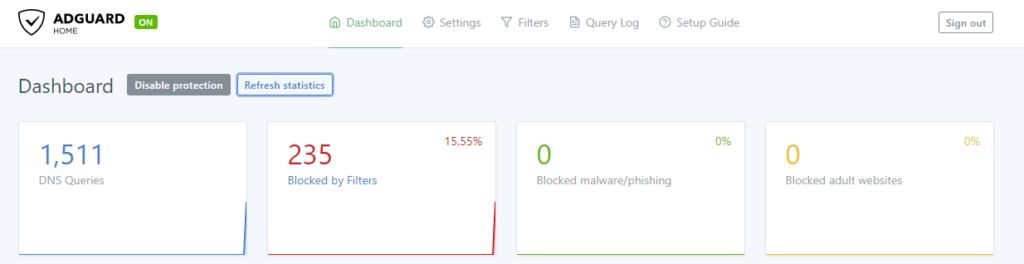
Following some issues with Pihole, I decided to check around for other solutions. I appears to me Adguard Home was here since a while, providing more features and some enhancements at the same time. So here I am, creating a small tutoriel to deploy it on a Docker container, please have a seat.

# Get the last version
docker pull adguard/adguardhome

# Create volumes to persist data
docker volume create adguard-vol-data
docker volume create adguard-vol-conf

# Create the dedicated network
docker network create --driver bridge adguard-net

Then create the actual container, for my setup, I decided to bind port 8001 to 3000 for the admin access. For a weird reason, during the wizard, if you choose to configure the admin pannel to port 3000 as described below, it will fails. So I had to start with the following Container’s definition, setup Adguard with port 80 as admin panel port access, then remove the container (data are persistant so no worries) then create it again with the next configuration.

docker run --name adg-01 \
     -v adguard-vol-data:/opt/adguardhome/work \
     -v adguard-vol-conf:/opt/adguardhome/conf \
     -p 53:53/tcp -p 53:53/udp \
     -p 8001:3000/tcp \
     --network adguard-net \
     -d adguard/adguardhome

As mentioned above, after the setup is done using the wizard (And telling it to listen on port 80 for your admin access), remove the container and rerun it with the following:

docker run --name adg-01 \
     -v adguard-vol-data:/opt/adguardhome/work \
     -v adguard-vol-conf:/opt/adguardhome/conf \
     -p 53:53/tcp -p 53:53/udp \
     -p 8001:80/tcp \
     --network adguard-net \
     -d adguard/adguardhome

Mattermost installation using Docker

Notice : despite the application quality, using it without licenses is barely viable. Why that, you ask? Because despite the two roles provided by the opensource (free) version – admin and regular user – none of those can prevent any user to update and even archive public channels. If you plan to grow a friends and family community, good luck preventing to put everything upside-down! For this reason, I highly recommend you to use Rocket.Chat instead, for which I will write a similar article.

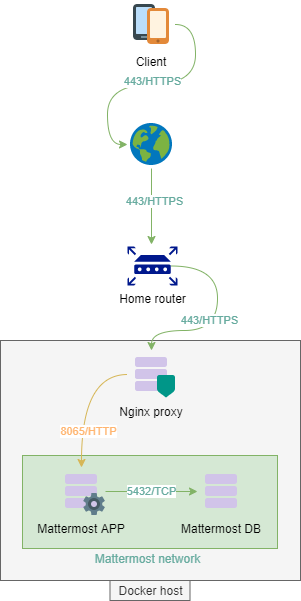
This post will try to best describe the way to deploy a Mattermost app using Docker, PostgreSQL and Centos Stream 8. This documentation is meant to be really easy to understand and apply, only two containers are going to be deployed: DB and APP.

Network consideration

First, we are going to create a dedicated network to put our two containers, this way we are isolating the whole Mattermost architecture from the rest of the world. A more production-ready approach would require segregating the DB from the APP, and add a reverse proxy at the front.

# Create our mattermost dedicated network using Bridge mode
docker network create --driver bridge mattermost-net

# To see your networks
[supertanker@docker ~]$ docker network ls
 NETWORK ID     NAME                 DRIVER    SCOPE
 e2f6f37df707   bridge               bridge    local
 b1f6b243e90a   host                 host      local
 ddaac33f0860   network-mattermost   bridge    local
 2b0615c84b42   none                 null      local

PostgreSQL container

# Get the image from the repository
docker pull postgres
# Create a new volume on the host, in order to persist data.
docker volume create mattermost-vol-db
# Spin up the container, including the network and volume we have created above:
docker run --detach --restart unless-stopped -v mattermost-vol-db:/var/lib/postgresql/data --network mattermost-net --name mmt-db-01 -e POSTGRES_PASSWORD=y5g9Z24%SDcwi7u^2gcH*T%5aJz7Z postgres

–detach will put the container in the background while –restart unless-stopped will start the container at host startup or if it crashes.

Your container should be now up and running in the background, here some basic though useful commands:

# Check if your container is running
docker container ls

# Check if data were actually created (sudo is required):
sudo ls /var/lib/docker/volumes/mattermost-vol-db/_data/

# Check the allocated IP address:
docker network inspect mattermost-net

Now we need to connect to our container in order to create our mattermost database

# Connect to the container
docker exec -it mmt-db-01 bash

# Then to PostgreSQL
psql -U postgres

# According to Mattermost documentation, create the DB
CREATE DATABASE mattermost WITH ENCODING 'UTF8' LC_COLLATE='en_US.UTF-8' LC_CTYPE='en_US.UTF-8' TEMPLATE=template0;

# Create a DB user
CREATE USER mmuser WITH PASSWORD 'ApassWordWithoutspecialChars';

# Grant the user access to the Mattermost database
GRANT ALL PRIVILEGES ON DATABASE mattermost to mmuser;

# Exit
\q

# Quit the container using CTRL+P then CTRL+Q

Additionally but it should be mandatory when running in production, we need to think about backink up the database. To do so, the following command will create a full dump on the host temp directory

docker exec -t mmt-db-01  pg_dumpall -c -U postgres | gzip > /tmp/dump_$(date +"%Y-%m-%d_%H_%M_%S").gz

Up to you to use that command with a cron task or whatever suits you, in order to backup your Mattermost DB regularly.

Mattermost application container

Create a directory called mattermost, this folder will be use to create our custom image only.

Create a file called Dockerfile with the following content

FROM alpine:3.12
 # Some ENV variables
 ENV PATH="/mattermost/bin:${PATH}"
 ARG PUID=1000
 ARG PGID=1000
 ARG MM_PACKAGE="https://releases.mattermost.com/5.35.2/mattermost-5.35.2-linux-amd64.tar.gz?src=docker"
 # Install some needed packages
 RUN apk add --no-cache \
   ca-certificates \
   curl \
   libc6-compat \
   libffi-dev \
   linux-headers \
   mailcap \
   netcat-openbsd \
   xmlsec-dev \
   tzdata \
   wv \
   poppler-utils \
   tidyhtml \
   && rm -rf /tmp/*
 # Get Mattermost
 RUN mkdir -p /mattermost/data /mattermost/plugins /mattermost/client/plugins \
   && if [ ! -z "$MM_PACKAGE" ]; then curl $MM_PACKAGE | tar -xvz ; \
   else echo "please set the MM_PACKAGE" ; fi \
   && addgroup -g ${PGID} mattermost \
   && adduser -D -u ${PUID} -G mattermost -h /mattermost -D mattermost \
   && chown -R mattermost:mattermost /mattermost /mattermost/plugins /mattermost/client/plugins
 USER mattermost

 # Healthcheck to make sure container is ready
 HEALTHCHECK --interval=30s --timeout=10s \
   CMD curl -f http://localhost:8065/api/v4/system/ping || exit 1

 # Configure entrypoint and command
 COPY entrypoint.sh /
 ENTRYPOINT ["/entrypoint.sh"]
 WORKDIR /mattermost
 CMD ["mattermost"]
 EXPOSE 8065 8067 8074 8075

# Do not add Volumes, it was making the container unable to see changes on volumes files...

Replace the value ARG PUID= and ARG PGID= by the ID of the supertanker user, to get it, run the following command

id supertanker

Create a file called entrypoint.sh with the following content

#!/bin/sh
 if [ "${1:0:1}" = '-' ]; then
     set -- mattermost "$@"
 fi
 exec "$@"

Update its permissions

chmod 755 entrypoint.sh

Build the custom image

docker image build . --tag mmt-app

Eventually, create our container using our custom image

docker run --detach --restart unless-stopped -v mattermost-vol-app:/mattermost --network mattermost-net -p 8065:8065 -p 8067:8067 -p 8074:8074 -p 8075:8075 --name mmt-app-01 mmt-app

Our container is now running, however, as we didn’t set the PostgreSQL user, password and DB, you should see the following logs:

docker logs mmt-app-01
{"level":"error","ts":1623228282.1595657,"caller":"sqlstore/store.go:294","msg":"Failed to ping DB","error":"dial tcp 127.0.0.1:5432: connect: connection refused","retrying in seconds":10}

Stop the container

docker container stop mmt-app-01

Go to its volume (using a sudo enabled user)

cd /var/lib/docker/volumes/mattermost-vol-app/_data/config/

Edit the file called config.json and fix the following line according to your DB server

"DataSource": "postgres://mmuser:passwordWithouSpecialChars@mmt-db-01/mattermost?sslmode=disable\u0026connect_timeout=10"

Start the container

docker container start mmt-app-01

And eventually, enjoy the view: http://yourserverip:8065/

Pihole server with Docker

This short article will help you running Pihole in a simple container.

Notice: You can go with Pihole depending on your needs, but I would now recommend switching to Adguard which is more evolved. If you are interested, take a look at my similar tutorial: https://blog.fevio.fr/2021/06/adguard-home-with-docker/

# First, create two dedicated volume (This is mandatory because how dmasq works)
docker volume create pihole-vol-app
docker volume create pihole-vol-dmasq

# A dedicated network for isolation
docker network create --driver bridge pihole-net

The next step will download and setup the actual Pihole container:

docker run -d \
     --name phl-01 \
     --network pihole-net \
     -p 53:53/tcp -p 53:53/udp \
     -p 8001:80 \
     -e TZ="Europe/Paris" \
     -v pihole-vol-app:/etc/pihole \
     -v pihole-vol-dmasq:/etc/dnsmasq.d \
     --dns=127.0.0.1 --dns=1.1.1.1 \
     --restart=unless-stopped \
     --hostname phl-01 \
     -e VIRTUAL_HOST="phl-01" \
     -e PROXY_LOCATION="phl-01" \
     -e ServerIP="127.0.0.1" \
     pihole/pihole:latest

Once it’s done, we need to get the random password generated during the setup

docker logs phl-01 2> /dev/null | grep 'password:'

# Should return something like:
Assigning random password: uHU7dwWE

Password update

As usual, it’s best to change the password you got, to do so, run the following command

docker exec -it phl-01 pihole -a -p

Now you can access your Pihole container using the host IP address and the port :8001 and should see Pihole interface as expected, for example: http://192.168.1.200:8001/admin/index.php

Create a Docker server using Centos Stream

Install Docker Stream on a USB key using Rufus

You can find this Windows tool over here: https://rufus.ie/en_US/ and Centos from the official website https://www.centos.org/

Install Centos Stream on the server

No biggy here, just choose Server install and not the one with the GUI.

Install Docker

We need to setup the repository in order to make Docker available through Yum, to do so:

sudo yum install -y yum-utils
sudo yum-config-manager --add-repo https://download.docker.com/linux/centos/docker-ce.repo

# Eventually install Docker, with alloerasing option which will remove conflitctual packages
sudo yum install docker-ce docker-ce-cli containerd.io --allowerasing

# Add a docker user to the dedicated group
adduser supertanker
passwd supertanker
sudo usermod -aG docker supertanker

Start Docker

Run the following command, that should not raise a flag

sudo systemctl start docker

# Using your new supertanker user, you should be able to run commands without sudo:
docker run hello-world

Make it starts at boot

sudo systemctl enable docker.service
sudo systemctl enable containerd.service