Author Archives: Sébastien

A System and Network Administrator with expertise in the management, improvement, and troubleshooting of IT infrastructures to run critical software-as-a-service applications. Cloud and on-premise systems management including worldwide production, disaster recovery, and office environments. Security and network-oriented with a proven background in Windows and Linux systems, always ready for new challenges.

Windows Server: disable Internet explorer annoying messages

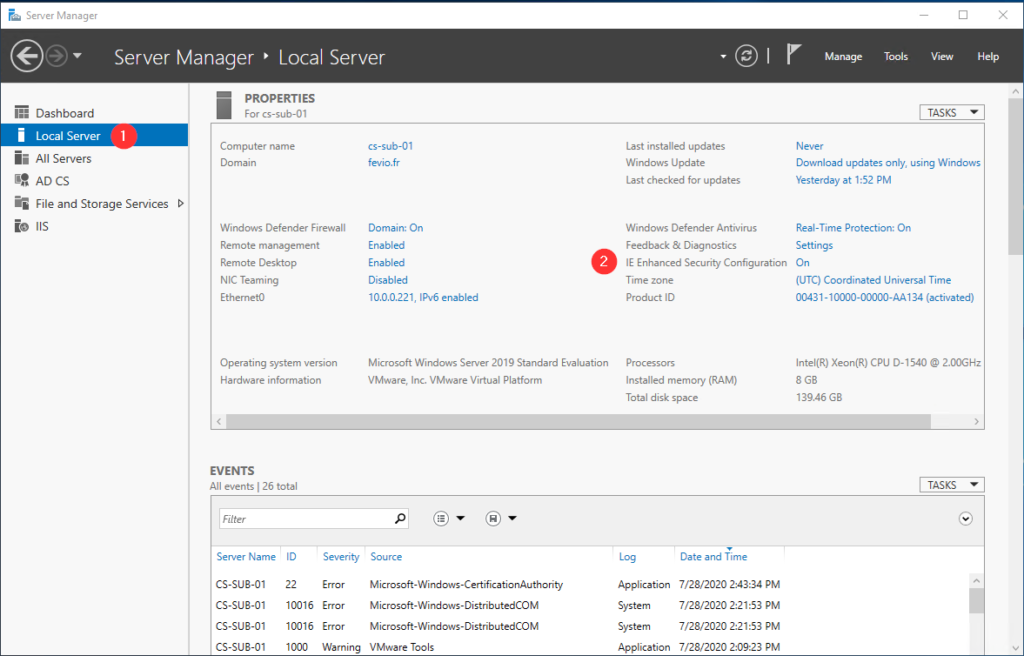
Actually, this mode is called Internet Explorer Enhanced Security Configuration, and you will face it each time you setup a new server. Usually, you won’t bother to change that because Internet Explorer is not the tool you want to use on a server, however, it is sometimes useful to get some packages, access some ressources online, and when that’s the case, you will swear to God how you hate that mode!

Anyway, here’s how to deal with that:
Windows Server: set up a network adapter using PowerShell

You will find simple commands to set up your network adapter settings using PowerShell.

Get the nework cards list:

Get-NetAdapter

Once you know which card you want to setup, we can store store it in a variable:

$netadapter = Get-NetAdapter -Name Ethernet

Then, you can run different commands to setup specific settings:

DHCP

$netadapter | Set-NetIPInterface -Dhcp Disabled

Configure IP address and Gateway

$netadapter | New-NetIPAddress -IPAddress 10.0.0.251 -PrefixLength 24 –DefaultGateway 10.0.0.254

DNS servers and search suffix

$netadapter | Set-DnsClientServerAddress -ServerAddresses ("10.0.0.1","10.0.0.2")
$netadapter | Set-DnsClient -ConnectionSpecificSuffix "fevio.fr"

Windows Server: NTP configuration

After having installed a new domain, I had to configure both time and timezone on the new AD servers, without using the time provided by the hypervisor, I had to configure those Windows servers to use an external NTP server. As I prefer to do that using script, I read the documentation to find out the proper commands to use:

# Configure Time Zone and NTP server
$TimeZoneID = "UTC"
$NTPServer = "ca.pool.ntp.org"

# Update the timezone
Set-TimeZone -Id $TimeZoneID -PassThru

# Set the NTP server
w32tm /config /syncfromflags:manual /manualpeerlist:"$NTPServer" /reliable:yes /update

# Restart the time service
Restart-Service w32time

If you want to see what’s configured, here some useful commands. Note that it could take between 10 and 60 seconds for the source and time to be updated depending on your network:

To show details about the current configuration:

w32tm /query /status

To see only information about the time source:

w32tm /query /source