Category Archives: Infrastructure

Infrastructure as code, virtualization and further

Guacamole server using Docker

version: "2"
services:
  postgresql:
    image: 'postgres:latest'
	container_name: guacamole_db
	ports:
      - 5432:5432
	environment:
      POSTGRES_USER: guacamole_postgres # The PostgreSQL user (useful to connect to the database)
      POSTGRES_PASSWORD: YourOwnPassword # The PostgreSQL password (useful to connect to the database)
      POSTGRES_DB: guacamole # The PostgreSQL default database (automatically created at first launch)
  guacd:
    image: "guacamole/guacd"
    container_name: guacd
    hostname: guacd
    restart: always
    volumes:
      - "/data/shared/guacamole/guacd/data:/data"
      - "/data/shared/guacamole/guacd/conf:/conf:ro"
    expose:
      - "4822"
    ports:
      - "4822:4822"
    network_mode: bridge

  guacamole:
    image: "guacamole/guacamole"
    container_name: guacamole
    hostname: guacamole
    restart: always
    volumes:
      - "/data/shared/guacamole/guacamole/guac-home:/data"
      - "/data/shared/guacamole/guacamole/conf:/conf:ro"
    expose:
      - "8080"
    ports:
      - "8088:8080"
    network_mode: bridge
    environment:
      - "GUACD_HOSTNAME=localhost"
      - "GUACD_PORT=4822"
      - "POSTGRES_PORT=5432"
      - "POSTGRES_DATABASE=guacamole"
      - "GUACAMOLE_HOME=/data"
      - "POSTGRES_USER=guacamole_postgres"
      - "POSTGRES_PASSWORD=YourOwnPassword"
      - "POSTGRES_HOSTNAME=localhost"

Go ahead and spin it

docker-compose up -d

Now we need to init the database

docker run --rm guacamole/guacamole /opt/guacamole/bin/initdb.sh --postgresql > initdb.sql
docker container cp initdb.sql guacamole_db:/
docker container exec -it guacamole_db psql --dbname=guacamole --username guacamole_postgres -f /initdb.sql

Below the old way version (not working properly regarding the guacacd part)

Here a really quick draft to setup a Guacamole RDP server using a docker container and PostgreSQL

# Get the latest image
docker pull guacamole/guacamole

# Create volumes to persist data
docker volume create guacamole-vol-app
docker volume create guacamole-vol-db

# Create the dedicated network
docker network create --driver bridge guacamole-net

Configure the database:

# Spin up the container
docker run --detach --restart unless-stopped -v guacamole-vol-db:/var/lib/postgresql/data --network guacamole-net --name gcm-db-01 -e POSTGRES_PASSWORD=aRandomPasswd postgres

# Connect to the container
docker exec -it gcm-db-01 bash

# Then to PostgreSQL
psql -U postgres

# Create the DB
CREATE DATABASE guacamole WITH ENCODING 'UTF8' LC_COLLATE='en_US.UTF-8' LC_CTYPE='en_US.UTF-8' TEMPLATE=template0;

create user guacamole_postgres with password 'randomPassword';
GRANT ALL PRIVILEGES ON DATABASE guacamole to guacamole_postgres;

# Quit
\q

# Quit the container
Ctrl+p then q

# The following command will generate a file to be used for DB initialization
docker run --rm guacamole/guacamole /opt/guacamole/bin/initdb.sh --postgres > initdb.sql


# Copy the file to the container
docker container cp initdb.sql gcm-db-01:/

# Execute the file
docker container exec -it gcm-db-01 psql --dbname=guacamole --username postgres -f /initdb.sql

Configure your container:

# Pull GuacaCD
docker pull guacamole/guacd

# Generate the GuacaCD proxy
docker run --name gcm-cd-01 --network guacamole-net -d guacamole/guacd 

docker run --name gcm-app-01 --network guacamole-net \
     -e POSTGRES_HOSTNAME=gcm-db-01 \
     -e POSTGRES_DATABASE=guacamole  \
     -e POSTGRES_USER=guacamole_user    \
     -e GUACD_HOSTNAME=gcm-cd-01 \
     -e TOTP_ENABLED=true \
     -e POSTGRES_PASSWORD=aRandomPasswd \
     -d -p 8003:8080 guacamole/guacamole

TOTP_ENABLED=true enable a WhateverAuthenticator app to add another level of security.
Adguard Home with Docker

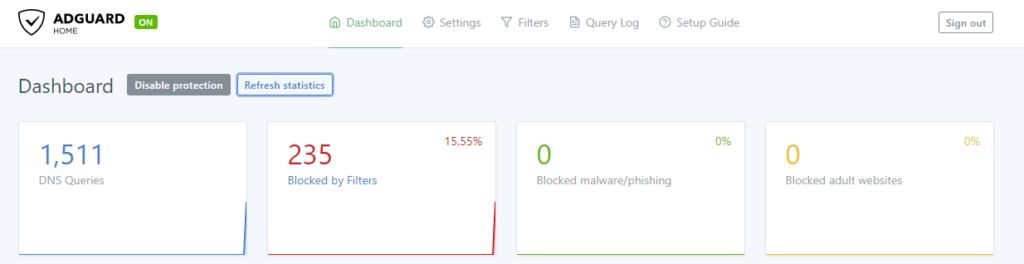
Following some issues with Pihole, I decided to check around for other solutions. I appears to me Adguard Home was here since a while, providing more features and some enhancements at the same time. So here I am, creating a small tutoriel to deploy it on a Docker container, please have a seat.

# Get the last version
docker pull adguard/adguardhome

# Create volumes to persist data
docker volume create adguard-vol-data
docker volume create adguard-vol-conf

# Create the dedicated network
docker network create --driver bridge adguard-net

Then create the actual container, for my setup, I decided to bind port 8001 to 3000 for the admin access. For a weird reason, during the wizard, if you choose to configure the admin pannel to port 3000 as described below, it will fails. So I had to start with the following Container’s definition, setup Adguard with port 80 as admin panel port access, then remove the container (data are persistant so no worries) then create it again with the next configuration.

docker run --name adg-01 \
     -v adguard-vol-data:/opt/adguardhome/work \
     -v adguard-vol-conf:/opt/adguardhome/conf \
     -p 53:53/tcp -p 53:53/udp \
     -p 8001:3000/tcp \
     --network adguard-net \
     -d adguard/adguardhome

As mentioned above, after the setup is done using the wizard (And telling it to listen on port 80 for your admin access), remove the container and rerun it with the following:

docker run --name adg-01 \
     -v adguard-vol-data:/opt/adguardhome/work \
     -v adguard-vol-conf:/opt/adguardhome/conf \
     -p 53:53/tcp -p 53:53/udp \
     -p 8001:80/tcp \
     --network adguard-net \
     -d adguard/adguardhome

Pihole server with Docker

This short article will help you running Pihole in a simple container.

Notice: You can go with Pihole depending on your needs, but I would now recommend switching to Adguard which is more evolved. If you are interested, take a look at my similar tutorial: https://blog.fevio.fr/2021/06/adguard-home-with-docker/

# First, create two dedicated volume (This is mandatory because how dmasq works)
docker volume create pihole-vol-app
docker volume create pihole-vol-dmasq

# A dedicated network for isolation
docker network create --driver bridge pihole-net

The next step will download and setup the actual Pihole container:

docker run -d \
     --name phl-01 \
     --network pihole-net \
     -p 53:53/tcp -p 53:53/udp \
     -p 8001:80 \
     -e TZ="Europe/Paris" \
     -v pihole-vol-app:/etc/pihole \
     -v pihole-vol-dmasq:/etc/dnsmasq.d \
     --dns=127.0.0.1 --dns=1.1.1.1 \
     --restart=unless-stopped \
     --hostname phl-01 \
     -e VIRTUAL_HOST="phl-01" \
     -e PROXY_LOCATION="phl-01" \
     -e ServerIP="127.0.0.1" \
     pihole/pihole:latest

Once it’s done, we need to get the random password generated during the setup

docker logs phl-01 2> /dev/null | grep 'password:'

# Should return something like:
Assigning random password: uHU7dwWE

Password update

As usual, it’s best to change the password you got, to do so, run the following command

docker exec -it phl-01 pihole -a -p

Now you can access your Pihole container using the host IP address and the port :8001 and should see Pihole interface as expected, for example: http://192.168.1.200:8001/admin/index.php

Create a Docker server using Centos Stream

Install Docker Stream on a USB key using Rufus

You can find this Windows tool over here: https://rufus.ie/en_US/ and Centos from the official website https://www.centos.org/

Install Centos Stream on the server

No biggy here, just choose Server install and not the one with the GUI.

Install Docker

We need to setup the repository in order to make Docker available through Yum, to do so:

sudo yum install -y yum-utils
sudo yum-config-manager --add-repo https://download.docker.com/linux/centos/docker-ce.repo

# Eventually install Docker, with alloerasing option which will remove conflitctual packages
sudo yum install docker-ce docker-ce-cli containerd.io --allowerasing

# Add a docker user to the dedicated group
adduser supertanker
passwd supertanker
sudo usermod -aG docker supertanker

Start Docker

Run the following command, that should not raise a flag

sudo systemctl start docker

# Using your new supertanker user, you should be able to run commands without sudo:
docker run hello-world

Make it starts at boot

sudo systemctl enable docker.service
sudo systemctl enable containerd.service

Command-line: Tools for Windows update

When you want to apply Windows Update by working around a GPO in place, or remotely on a computer without having to RDP on it, knowing some command line commands might be useful.

However it’s hard to find the perfect way to do it, actually, I am still looking for it. I found the following possibilities, but none of them is perfect.

Applying updates remotely, from a PSSession

This command will trigger the installation of pending updates, remotely, yet you won’t be able to see what’s going on as there is no output

USOCLIENT.EXE RefreshSettings StartScan StartDownload StartInstall 

The good thing about this one is it able to apply feature upgrades (From one Windows version to another one). You will need to ask the user to reboot and apply though (He should see the orange button while restarting his computer)

Another way, to apply updates, is to use the following Powershell module

With this method, it seems hard to apply them from a PSSession without getting access denied, I think I need to dig deeper to understand why. However, you can run it from the workstation if the policy in place denies you to do it from the GUI (as an administrator obviously):

# install the module, once for all
install-module pswindowsupdate

# trigger Windows update check
get-windowsupdate

# Finally, and this command does not work remotely, install them
install-windowsupdate

Manage Windows Update with PowerShell

When you like dealing with servers or workstations remotely, using PSSession for instance, or when you are just a terminal nerd, it’s really nice to be able to run Windows Update this way.

This post will list what you have to to do in order to enable this feature on a Windows 10 workstation.

Trust the gallery

In order to install the Windows Update PowerShell module, we have to trust the Microsoft repository where it comes from. To do so, use this command:

Set-PSRepository -Name 'PSGallery' -InstallationPolicy Trusted

Install the module

Install-Module PSWindowsUpdate

Use PowerShell to update the device

Now the module is installed, you can use the following command to check and install updates from the command line:

Get-WindowsUpdate
Install-WindowsUpdate

Install Terraform on Ubuntu 20.04

This post resume for my own convenience, what to do in order to install Terraform on an Ubuntu machine.

Add HasiCorp GPG key:

curl -fsSL https://apt.releases.hashicorp.com/gpg | sudo apt-key add -

Add the repository:

sudo apt-add-repository "deb [arch=amd64] https://apt.releases.hashicorp.com $(lsb_release -cs) main"

Eventually, update and install the terraform package:

 sudo apt-get update && sudo apt-get install terraform

How to control your Windows Server’s cipher suites with IIS Crypto

When you are in charge of fixing vulnerabilities or troubleshooting software encrypted communication issues, you often have to deal with upgrading or fixing cipher suites. It’s often complex depending on the vendor, to access, customize or even know which cipher suites are available.

For Windows Server, a company called Nartac provides a free tool called IIS Crypto, that will help you configure your servers security in a snap!

Using IIS Crypto with a GUI

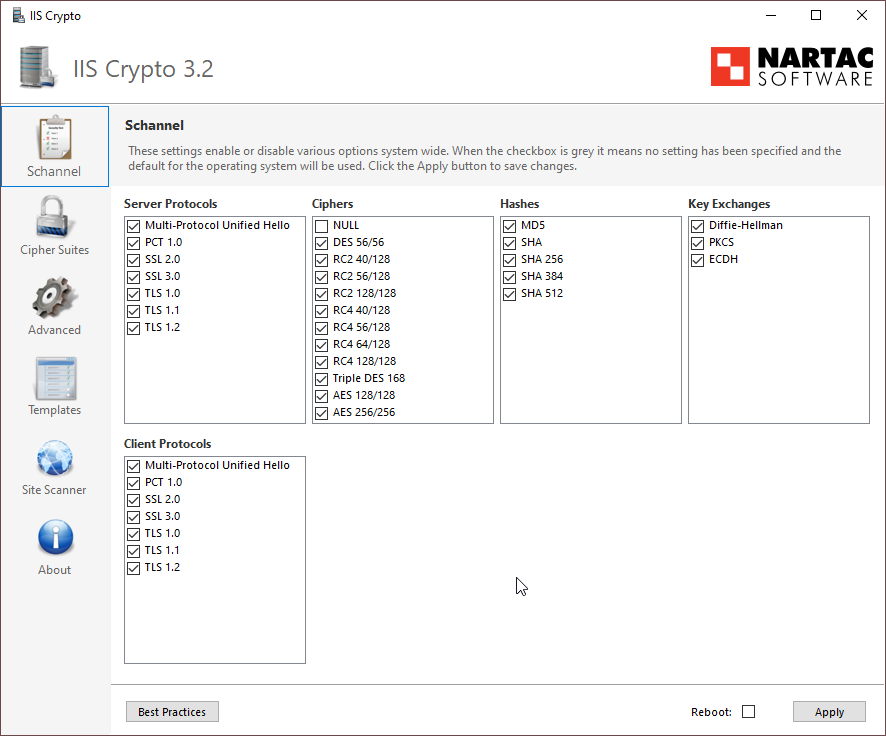
Nartac offers two versions of its tool, the one which come the GUI and the CLI version. I would recommand to install the GUI version to get familiar with it, you will see which suites and schannel are available on your system, understand how the product works, and finally you will be able to create custom templates to use with the GUI or, even better, with the CLI.

IIS Crypto GUI

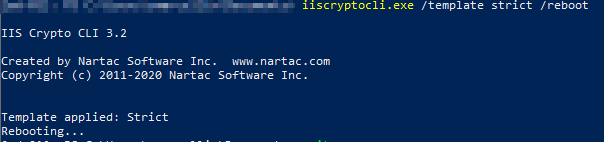
IIS Crypto CLI

Once you’re comfortable with IIS Crypto, and especially if you have many servers to manage, I would highly recommend going with the CLI version.

You can deploy IIS Crypto through chocolatey and then apply a pre-existing template, or a custom one depending on your needs:

Here, I apply an embedded template (Strict) while asking for a reboot for this template to be applied immediately

Powershell: How to run commands on a remote server

If you want to run PowerShell commands remotely, this post could help you.

Checking if you already have access to the remote server, from the workstation you want use:

Test-WsMan COMPUTERNAME

You should get something like that:

wsmid           : http://schemas.dmtf.org/wbem/wsman/identity/1/wsmanidentity.xsd
ProtocolVersion : http://schemas.dmtf.org/wbem/wsman/1/wsman.xsd
ProductVendor   : Microsoft Corporation
ProductVersion  : OS: 0.0.0 SP: 0.0 Stack: 3.0

If you don’t have access, use the following command to enable PSRemoting on the server you want:

Enable-PSRemoting -SkipNetworkProfileCheck

Note that it won’t work if the server or workstation is using a public network, the command check network profiles before applying this change. However, I got a weird behavior where none of my network profiles were using a public profile but PSRemoting was telling me the opposite. To workaround this, use the following command:

Enable-PSRemoting -SkipNetworkProfileCheck -Force

Running a command from a station to a server

Use the following command

Invoke-Command -ComputerName COMPUTERNAME -ScriptBlock { COMMAND } -credential USERNAME

Opening a remote PowerShell session

Enter-PSSession -ComputerName COMPUTERNAME -Credential USER