Category Archives: Infrastructure

Infrastructure as code, virtualization and further

Windows Server: Add and configure a new DC server using PowerShell

Preconfiguration

After the server is freshly installed, we need to configure the following settings:

  • Setup the network properly, especially its static IP address
  • Setup the desired hostname
  • Setup the time configuration, especially the timezone, using NTP (optional)
  • Apply the latest updates before moving on to DC roles installation

Network setup

Connect remotely to your new server using PowerShell

Enter-PSSession -ComputerName COMPUTERNAME -Credential USER

Use the following article to configure the network, fix the IP address and remove the DHCP configuration: https://blog.fevio.fr/2005/04/windows-server-set-up-a-network-adapter-using-powershell/

Change the hostname

Rename-Computer -NewName "NewServerName"

Update the time settings

Follow this article: https://blog.fevio.fr/2000/09/windows-server-ntp-configuration/

Then, upgrade your server before moving on.

Directory Controller Configuration

From the previous remote PowerShell session, run the following command:

Install-WindowsFeature -Name AD-Domain-Services -IncludeManagementTools

For a WHOLE NEW FOREST/DOMAIN

Now, we install the corresponding roles, choose the different paths we want to use and tell we want to create a DNS server as well

Install-ADDSForest -DomainName "fevio.fr" -InstallDNS -DatabasePath "C:\NTDS" -SysvolPath "C:\SYSVOL" -LogPath "C:\Logs"

Or, to add a DC to an EXISTANT domain

Use the following command instead:

Install-ADDSDomainController -InstallDns -DatabasePath "C:\NTDS" -SysvolPath "C:\SYSVOL" -LogPath "C:\Logs" -Credential (Get-Credential "fevio.fr\Administrator") -DomainName "fevio.fr"

The server will then install the different roles required, including the DNS part, and reboot after the process ends.

Note that, running repadmin.exe /replsummary through a remote PS shell will fail, to check the replication status you will need to run those commands from the local terminal of your server, or through a remote desktop session for a non-core server.

Hyper-V on Windows 10: quick notes

It’s been really handy to be able to run virtual machines on regular Windows 10 machines, thanks to Hyper-v. However, I had some difficulties at the beginning because a lack of polishing about this feature. Here are some tips that can help.

Error when trying to start a new VM after its creation

The first issue I got after I had created my first VM, was make it starts! It could seem silly, however, for some reasons, when you click on “start VM” from the Hyper-V manager, the connector is not launched with administrator rights, hence it won’t start the VM with a weird error message.

The easiest way to workaround this, is to find and create a shortcut leading directly to , which is located here:

C:\Windows\System32\vmconnect.exe

Note that, virtmgmt.msc, is also located in that folder.

You will just have to run that exe with administration rights to get back on business!

GCP setup on Ubuntu servers and Terraform example

First, install the repository, GPG key, and install the Google Cloud SDK

# Add the Cloud SDK distribution URI as a package source
echo "deb http://packages.cloud.google.com/apt cloud-sdk main" | sudo tee -a /etc/apt/sources.list.d/google-cloud-sdk.list

# Import the Google Cloud Platform public key
curl https://packages.cloud.google.com/apt/doc/apt-key.gpg | sudo apt-key add -

# Update the package list and install the Cloud SDK
sudo apt-get update && sudo apt-get install google-cloud-sdk

Init the GCP SDK

On desktop workstations, you can use the regular gcloud init. However, on console-only systems, you will need to use the following command:

gcloud init --console-only

You will be asked to authenticate, then you will have to copy/paste an URL in your browser (Even if your are working remotely on another server):

Then, pick the project you want to work with, and set if ask, the default region (europe-west6-a for Zurich for instance).

Configure Terraform

Go to a clean folder on your Linux server, then edit a main.tf file with the following:

provider "google" {
  credentials = file("account.json")
  project     = "my-project-id"
  region      = "us-central1"
}

resource "google_compute_project_default_network_tier" "default" {
  network_tier = "PREMIUM"
}

Note that we set the tier to STANDARD, you can use PREMIUM depending on your needs.

Then, create the account.json and paste the content of the key file you have created.

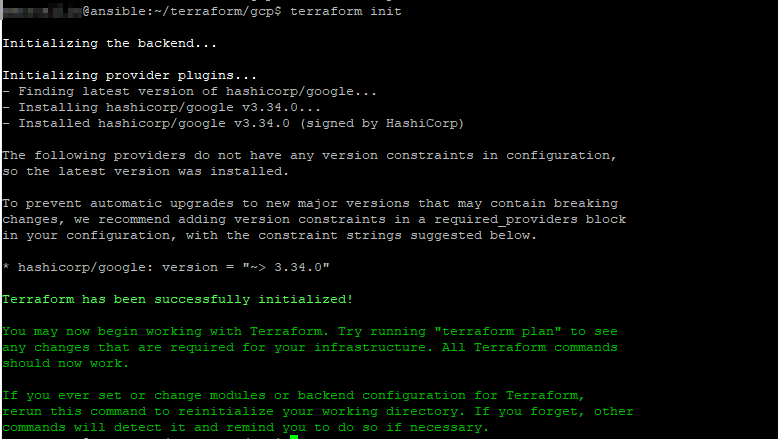
Eventually, run the following command to initialize your project:

terraform init

And you should end with a similar screen:

Example: create a vm instance in your project

Within your Terraform project folder, create beside the main.tf, a new file called whatever you want, but related to the instance you want to create, with the following content:

resource "google_compute_instance" "vm_instance" {
  name         = "my-instance-01"
  machine_type = "f1-micro"
  zone         = "europe-west6-a"

  boot_disk {
    initialize_params {
      image = "ubuntu-2004-focal-v20200720"
    }
  }

  network_interface {
    # A default network is created for all GCP projects
    network = "default"
    access_config {
    }
  }
}

This file defines a f1-micro instance located in europe-west6-a, running on ubuntu 20.04, with a default network configuration.

To check what is going to be created, run the command below:

terraform plan

To actually apply this plan, run the following command:

terraform apply
If all good, you should see that screen!

Windows Server: disable Internet explorer annoying messages

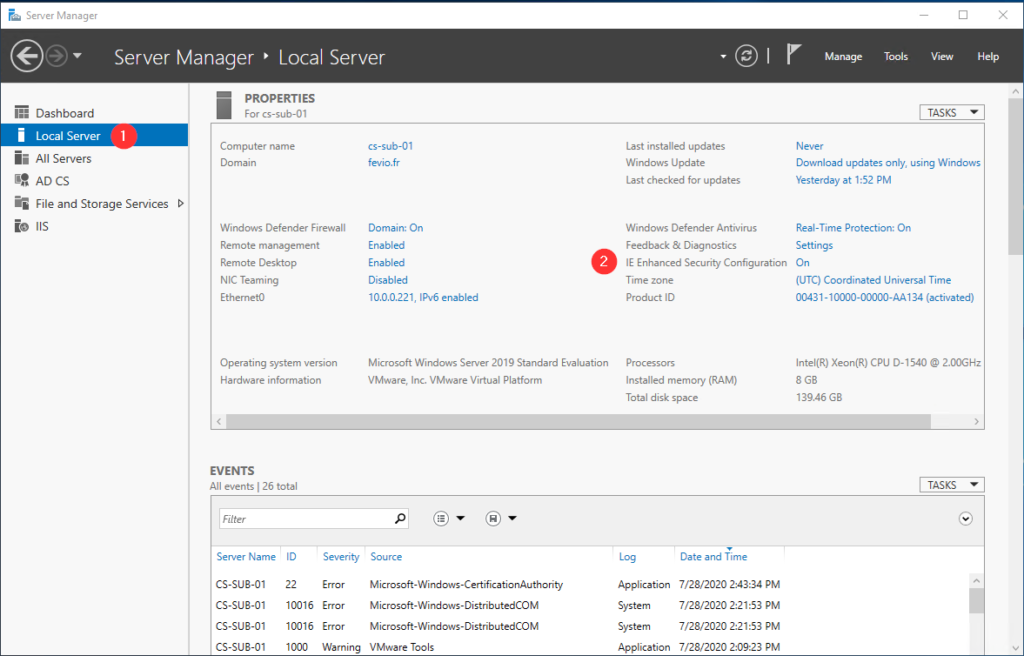
Actually, this mode is called Internet Explorer Enhanced Security Configuration, and you will face it each time you setup a new server. Usually, you won’t bother to change that because Internet Explorer is not the tool you want to use on a server, however, it is sometimes useful to get some packages, access some ressources online, and when that’s the case, you will swear to God how you hate that mode!

Anyway, here’s how to deal with that:

Windows Server: set up a network adapter using PowerShell

You will find simple commands to set up your network adapter settings using PowerShell.

Get the nework cards list:

Get-NetAdapter

Once you know which card you want to setup, we can store store it in a variable:

$netadapter = Get-NetAdapter -Name Ethernet

Then, you can run different commands to setup specific settings:

DHCP

$netadapter | Set-NetIPInterface -Dhcp Disabled

Configure IP address and Gateway

$netadapter | New-NetIPAddress -IPAddress 10.0.0.251 -PrefixLength 24 –DefaultGateway 10.0.0.254

DNS servers and search suffix

$netadapter | Set-DnsClientServerAddress -ServerAddresses ("10.0.0.1","10.0.0.2")
$netadapter | Set-DnsClient -ConnectionSpecificSuffix "fevio.fr"

Windows Server: NTP configuration

After having installed a new domain, I had to configure both time and timezone on the new AD servers, without using the time provided by the hypervisor, I had to configure those Windows servers to use an external NTP server. As I prefer to do that using script, I read the documentation to find out the proper commands to use:

# Configure Time Zone and NTP server
$TimeZoneID = "UTC"
$NTPServer = "ca.pool.ntp.org"

# Update the timezone
Set-TimeZone -Id $TimeZoneID -PassThru

# Set the NTP server
w32tm /config /syncfromflags:manual /manualpeerlist:"$NTPServer" /reliable:yes /update

# Restart the time service
Restart-Service w32time

If you want to see what’s configured, here some useful commands. Note that it could take between 10 and 60 seconds for the source and time to be updated depending on your network:

To show details about the current configuration:

w32tm /query /status

To see only information about the time source:

w32tm /query /source