Category Archives: Non classé

RFLink (RTS) to MQTT via NodeMCU

This page is about configuring an RFLink RTS capable device to be able to connect to a HomeAssistant server through MQTT, using a NodeMCU for the interface.

Hardware requirements:

  • RFLink 433 (Somfy RTS) / Arduino Mega / Dipole / USB cable
  • A NodeMCU
  • Some straps to connect your Arduino Mega and NodeMCU

Software requirements:

  • Homeassistant
  • Arduino IDE

Configure NodeMCU

This part is based on Mr Seb82 and you can check his original work here: https://github.com/seb821/espRFLinkMQTT

For convenience / archive I will put the zip file version of what I used here:

Unzip it on your computer, edit the config.h file and edit the Wifi parameters especially:

The first three lines are the information of your IoT Wifi network, you can set them here if you know them already. Be careful though, if your password is too complex, you will see nothing after you flashed your NodeMCU. So keep is simple, unfortunately… I would also recommend to check the 5ghz capability of your NodeMCU if you want to use this band.

If you know about your SSID config, you can comment the last line. If you don’t the NodeMCU will boot as an access point, connect to it (IP is 192.168.4.1) then go to the system tab. Note this tab won’t show up on a smartphone unless you switch your browser into Desktop Mode.

Once this is configured, open espRFLinkMQTT.ino with Arduino IDE, and load it to your NodeMCU (You might need to install a library for that, depending on your configuration)

After two minutes you should see the NodeMCU either connected to your router (if the last line was commented) or its SSID appearing on your available Wifi network list.

You can now access it via http://itsIP and configure the MQTT part on the system tab.

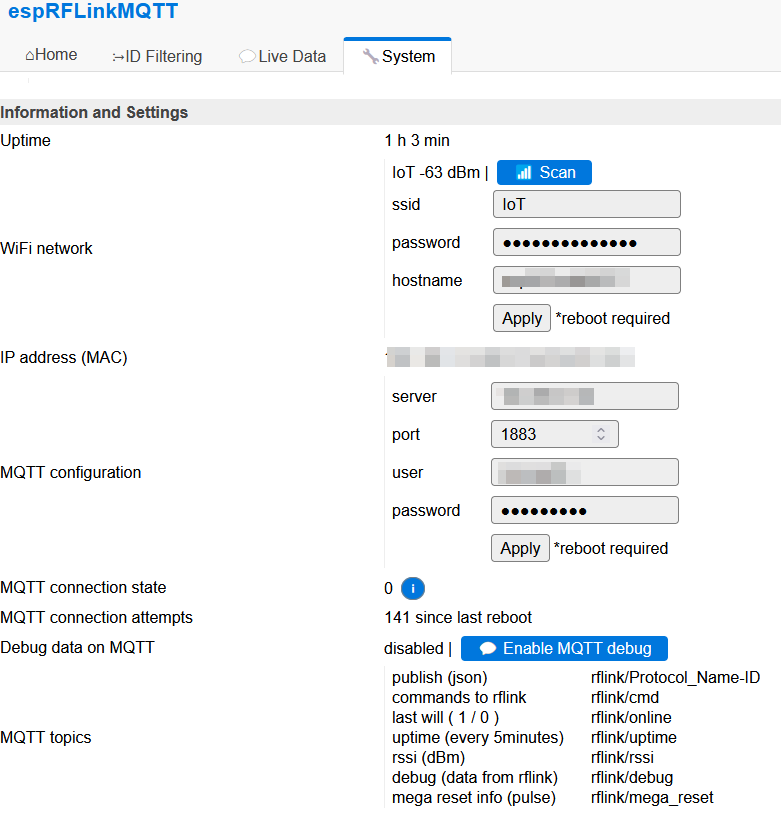
Here is an example with MQTT properly configured:

RFLink configuration

  • Download the RFLink loader and the RFLink firmware from here: https://www.rflink.nl/download.php
  • Open the loader, connect your Mega to your computer and load the firmware you got

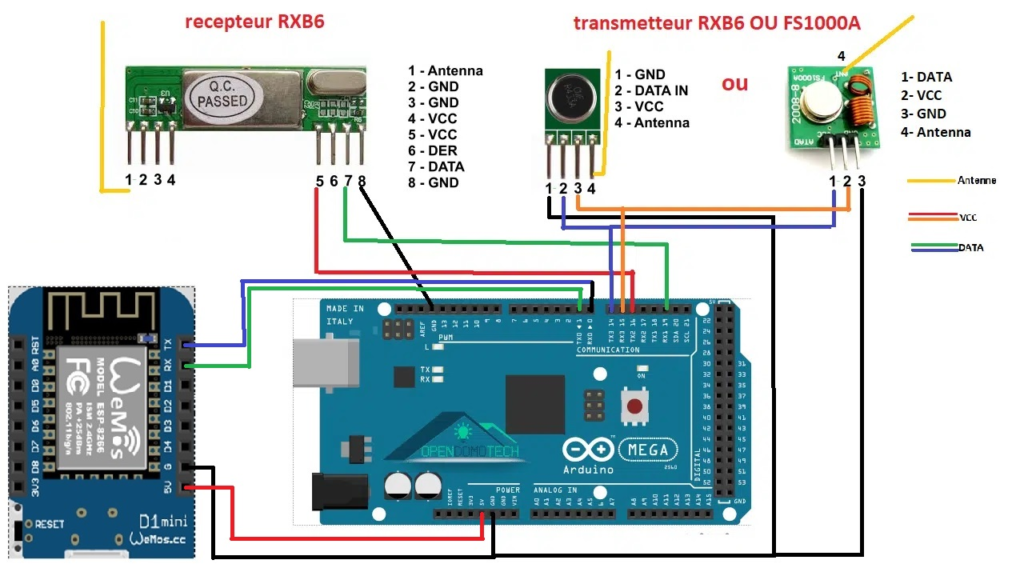
So, you must have the Arduino Mega, a gateway board (the one with the antenna plug) and a small board with the 433Mhz module on it. Assemble everything + connect your NodeMCU like in this image, with one specification:

  • Use the 3.3v connector from the Mega card to connect your NodeMCU because it does not work with 5v

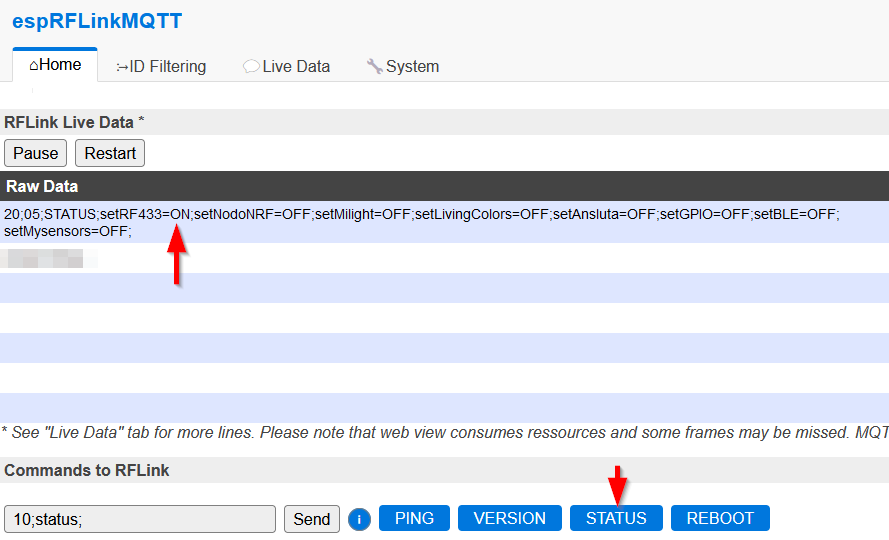
Plug your Mega on a USB interface and both the Mega and NodeMCU might turn on, you should now be able to test the communication, for that reach your NodeMCU IP address with your browser, and on the first page, click the STATUS button:

Mosquitto

This page won’t explain how to configure Mosquitto, but you must have a broker like this to interface between your NodeMCU and Home assistant.

Homeassistant

Enabling MQTT

  • Go to settings, Devices & services
  • Click the button to Add integration, search for MQTT
  • Configure it depending on your Mosquitto (or any broker you have set)

Configuring a test automation

  • Settings, automation and scenes, create automation
  • Trigger:
    • MQTT
    • Topic: rflink/uptime
  • Action
    • Whatever you want 😀 but if you have a Google Home:
    • Call service
    • Text-to-Speech
    • Entity: your google home
    • Message: ESP Online

This will shout ESP online every 5 minutes, when your NodeMCU publish its uptime.

Replace Biticino interphone

For the records, interphones are configured through specific resistors (looks like fuses)

Each appartement has its own number (mine is 7) and then I got a fuse with a 7 written on it.

keep the fuse / fuses from the old device, it must have a number on it and a position on the plate (pick a picture to remember). For me I had one fuse with the number 7 written on it, it was placed on the right of the N pin place.

the right position is for the unit (1 to 9 then) and the left position for the dozen (10and above)

now on your new Biticino you have to find the pin board with the N label and put back your fuses on it, in the same order.

I had to put the fuse number 7 on the right position where the N label was written.

Mattermost installation using Docker

Notice : despite the application quality, using it without licenses is barely viable. Why that, you ask? Because despite the two roles provided by the opensource (free) version – admin and regular user – none of those can prevent any user to update and even archive public channels. If you plan to grow a friends and family community, good luck preventing to put everything upside-down! For this reason, I highly recommend you to use Rocket.Chat instead, for which I will write a similar article.

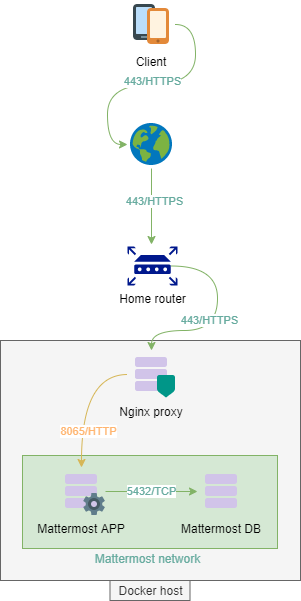
This post will try to best describe the way to deploy a Mattermost app using Docker, PostgreSQL and Centos Stream 8. This documentation is meant to be really easy to understand and apply, only two containers are going to be deployed: DB and APP.

Network consideration

First, we are going to create a dedicated network to put our two containers, this way we are isolating the whole Mattermost architecture from the rest of the world. A more production-ready approach would require segregating the DB from the APP, and add a reverse proxy at the front.

# Create our mattermost dedicated network using Bridge mode
docker network create --driver bridge mattermost-net

# To see your networks
[supertanker@docker ~]$ docker network ls
 NETWORK ID     NAME                 DRIVER    SCOPE
 e2f6f37df707   bridge               bridge    local
 b1f6b243e90a   host                 host      local
 ddaac33f0860   network-mattermost   bridge    local
 2b0615c84b42   none                 null      local

PostgreSQL container

# Get the image from the repository
docker pull postgres
# Create a new volume on the host, in order to persist data.
docker volume create mattermost-vol-db
# Spin up the container, including the network and volume we have created above:
docker run --detach --restart unless-stopped -v mattermost-vol-db:/var/lib/postgresql/data --network mattermost-net --name mmt-db-01 -e POSTGRES_PASSWORD=y5g9Z24%SDcwi7u^2gcH*T%5aJz7Z postgres

–detach will put the container in the background while –restart unless-stopped will start the container at host startup or if it crashes.

Your container should be now up and running in the background, here some basic though useful commands:

# Check if your container is running
docker container ls

# Check if data were actually created (sudo is required):
sudo ls /var/lib/docker/volumes/mattermost-vol-db/_data/

# Check the allocated IP address:
docker network inspect mattermost-net

Now we need to connect to our container in order to create our mattermost database

# Connect to the container
docker exec -it mmt-db-01 bash

# Then to PostgreSQL
psql -U postgres

# According to Mattermost documentation, create the DB
CREATE DATABASE mattermost WITH ENCODING 'UTF8' LC_COLLATE='en_US.UTF-8' LC_CTYPE='en_US.UTF-8' TEMPLATE=template0;

# Create a DB user
CREATE USER mmuser WITH PASSWORD 'ApassWordWithoutspecialChars';

# Grant the user access to the Mattermost database
GRANT ALL PRIVILEGES ON DATABASE mattermost to mmuser;

# Exit
\q

# Quit the container using CTRL+P then CTRL+Q

Additionally but it should be mandatory when running in production, we need to think about backink up the database. To do so, the following command will create a full dump on the host temp directory

docker exec -t mmt-db-01  pg_dumpall -c -U postgres | gzip > /tmp/dump_$(date +"%Y-%m-%d_%H_%M_%S").gz

Up to you to use that command with a cron task or whatever suits you, in order to backup your Mattermost DB regularly.

Mattermost application container

Create a directory called mattermost, this folder will be use to create our custom image only.

Create a file called Dockerfile with the following content

FROM alpine:3.12
 # Some ENV variables
 ENV PATH="/mattermost/bin:${PATH}"
 ARG PUID=1000
 ARG PGID=1000
 ARG MM_PACKAGE="https://releases.mattermost.com/5.35.2/mattermost-5.35.2-linux-amd64.tar.gz?src=docker"
 # Install some needed packages
 RUN apk add --no-cache \
   ca-certificates \
   curl \
   libc6-compat \
   libffi-dev \
   linux-headers \
   mailcap \
   netcat-openbsd \
   xmlsec-dev \
   tzdata \
   wv \
   poppler-utils \
   tidyhtml \
   && rm -rf /tmp/*
 # Get Mattermost
 RUN mkdir -p /mattermost/data /mattermost/plugins /mattermost/client/plugins \
   && if [ ! -z "$MM_PACKAGE" ]; then curl $MM_PACKAGE | tar -xvz ; \
   else echo "please set the MM_PACKAGE" ; fi \
   && addgroup -g ${PGID} mattermost \
   && adduser -D -u ${PUID} -G mattermost -h /mattermost -D mattermost \
   && chown -R mattermost:mattermost /mattermost /mattermost/plugins /mattermost/client/plugins
 USER mattermost

 # Healthcheck to make sure container is ready
 HEALTHCHECK --interval=30s --timeout=10s \
   CMD curl -f http://localhost:8065/api/v4/system/ping || exit 1

 # Configure entrypoint and command
 COPY entrypoint.sh /
 ENTRYPOINT ["/entrypoint.sh"]
 WORKDIR /mattermost
 CMD ["mattermost"]
 EXPOSE 8065 8067 8074 8075

# Do not add Volumes, it was making the container unable to see changes on volumes files...

Replace the value ARG PUID= and ARG PGID= by the ID of the supertanker user, to get it, run the following command

id supertanker

Create a file called entrypoint.sh with the following content

#!/bin/sh
 if [ "${1:0:1}" = '-' ]; then
     set -- mattermost "$@"
 fi
 exec "$@"

Update its permissions

chmod 755 entrypoint.sh

Build the custom image

docker image build . --tag mmt-app

Eventually, create our container using our custom image

docker run --detach --restart unless-stopped -v mattermost-vol-app:/mattermost --network mattermost-net -p 8065:8065 -p 8067:8067 -p 8074:8074 -p 8075:8075 --name mmt-app-01 mmt-app

Our container is now running, however, as we didn’t set the PostgreSQL user, password and DB, you should see the following logs:

docker logs mmt-app-01
{"level":"error","ts":1623228282.1595657,"caller":"sqlstore/store.go:294","msg":"Failed to ping DB","error":"dial tcp 127.0.0.1:5432: connect: connection refused","retrying in seconds":10}

Stop the container

docker container stop mmt-app-01

Go to its volume (using a sudo enabled user)

cd /var/lib/docker/volumes/mattermost-vol-app/_data/config/

Edit the file called config.json and fix the following line according to your DB server

"DataSource": "postgres://mmuser:passwordWithouSpecialChars@mmt-db-01/mattermost?sslmode=disable\u0026connect_timeout=10"

Start the container

docker container start mmt-app-01

And eventually, enjoy the view: http://yourserverip:8065/

Manage users and security groups via PowerShell

I will regroup in this post ways to deal with users and groups within an active directory domain.

Add all users of a specific OU to a specific security group

In this example, we set all users of the HR group to be part of the HR security group:

Get-ADUser -SearchBase 'OU=RH,OU=Domain Users,DC=corp,DC=fevio,DC=fr' -Filter * | ForEach-Object {Add-ADGroupMember -Identity 'Service - HR' -Members $_ }

Batch set a specific setting to a whole OU (recursively)

Here, we set all our user in order to prevent them from changing their password (That was used during a migration). The way I used here was a bit different:

Get-ADUser -filter * -searchbase "OU=Domain Users,DC=corp,DC=fevio,DC=fr" |
set-aduser -CannotChangePassword $True

OPNSense: install a legit certificate from your PKI

The following post will explain how to generate and install a valid certificate using your PKI infrastructure. This way, you won’t have a warning message while accessing your appliance through HTTPS.

Generate the Certificate Signing Request (CSR)

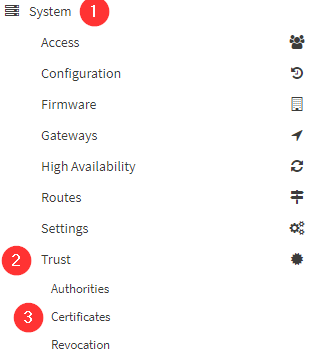
First, you will need to generate a CSR from your OPNsense box, to do so, navigate to:

Click the +Add button which is on the top right corner, then choose Create a Certificate Signing Request

Populate the form with the information you want, choose a proper Descriptive Name and Common Name that match your device (opnsense.fevio.fr for instance)

Once it is generated, you will see the list of certificates plus the new one you have requested. Click on the pencil located on the very right of that line, and copy/paste the CSR text.

Submit you CSR to your PKI

Assuming you already have deployed the Web Enrollment role on your PKI infrastructure, go to its URL, that should be something like: https://my-subordinate-ca.fevio.fr/certsrv

Note that you need to connect as a user with the proper rights, not an administrator for instance. This would be more documented later.

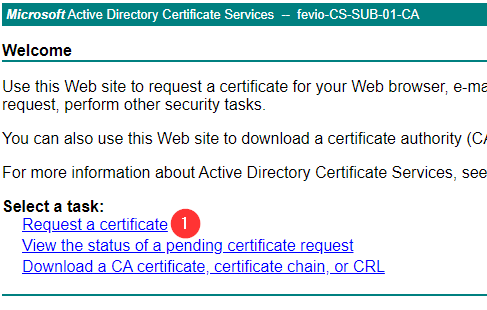
Click on Request a certificate
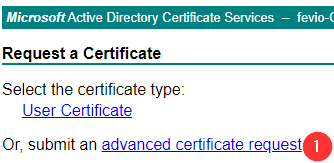
Choose Submit an advanced certificate request
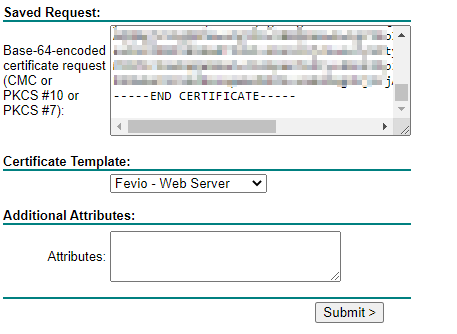
Paste the text from OPNSense (The CSR request) and choose the proper template (Here it’s a deviation from the Web Server certificate template)
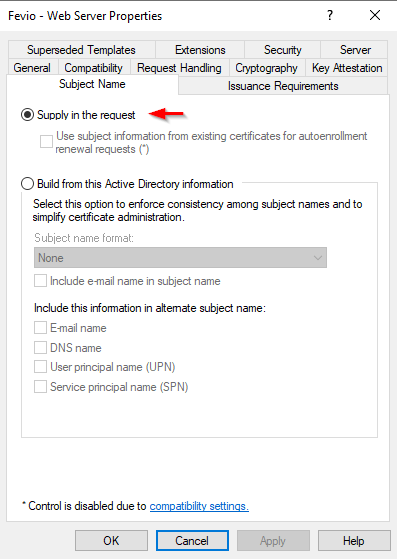
For the records, here the Subject Name configuration for the Web Server template
  • Once the certificate is generated, choose to export it using Base 64 encoding
  • Then, before pasting its content to your OPNSense, do the following:
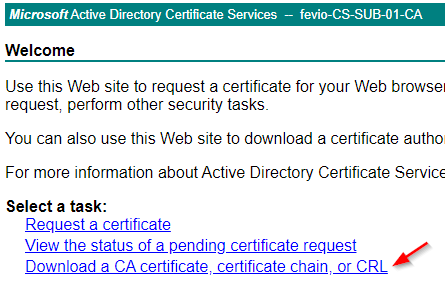
Return to your CertServ server to download your Subordinate CA
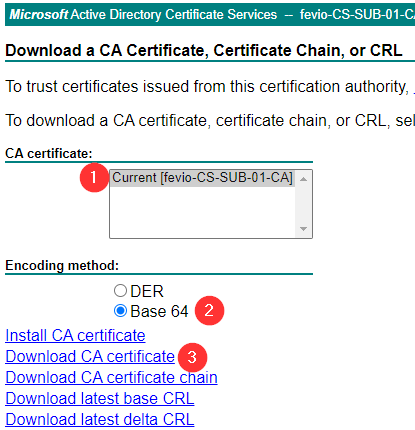
Download the Subordinate CA using Base 64 encoding

Then, open a text editor, copy the content of your OPNSense certificate at the begining of this empty file, and add the content of the Subordinate CA at the end. This way, you will have the proper chain included in one file.

Return to your OPNSense, and paste the whole content as the response from your CA.

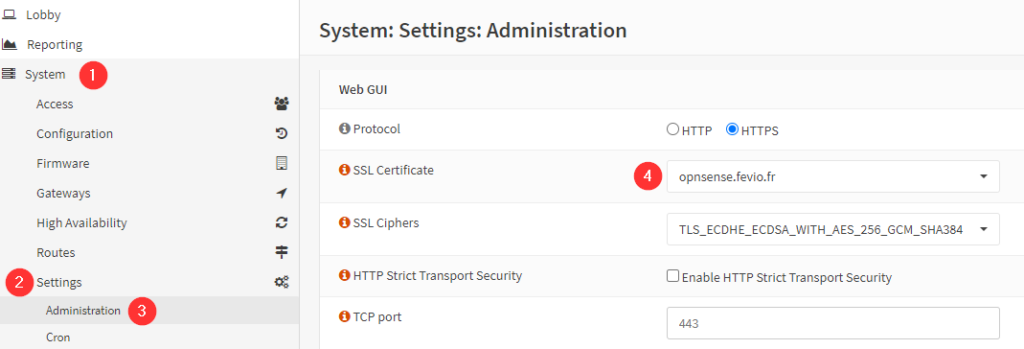
Define the new cert as GUI cert

The last step is easy, go to the following menu and use the scroll down menu to choose your new CA 😀

Git – memory helper (Work in progress)

This is a very simple post about some commands I wanted to remember, especially the ones required to install and configure Git on a new computer. I will keep this post updated in the future, so feel free to come again from time to time.

How to push your project code to your new Git server on Windows

First, you need to install Git on your Windows machine, I’m using chocolatey for that task:

choco install git

Then we need to add our remote repository with the following commands:

# Move to your project folder
cd D:\mydir

# Initialize Git
git init

# Add a connection to your remote Git server
git remote add my-app git@10.0.0.77:my-app.git

Now, we need to push the content over the remote repo. Before doing that, we need to add our project’s files to the local repo, them commit those changes and push the whole thing eventually:

# Add all our projects files
git add .

# Commit those new files to the local repo, the message is mandatory
git commit -m 'Initial commit'

# Finally, push everything to the remote Git
git push my-app master

How to deploy Git “client” on Linux

Install the package, here for Ubuntu:

apt get install git

Go to the folder you want, then run the following commands:

cd /var/www/mydir

# Initialize Git
git init

# Add a connection to your remote Git server
git remote add my-app git@10.0.0.77:my-app.git

# Pull the data from the master branch of the remote Git server
git pull my-app master

Google Cloud Platform, setup remote SSH connection

After you have created a new Linux instance, you might want to remote connect to it from your local workstation. There are several ways to do that, like using the Gcloud command:

gcloud beta compute ssh --zone "europe-west6-a" "my-instance-01" --project "my-project-6847321"

However, if you want to access your instance a more classical way, you might want to allow a regular SSH session to be established.

In order to allow a classic SSH session:

  • Go to the Google Cloud Platform Web Console
  • Open Computer Engine
  • Click on VM instances
  • Click on the VM you want access to
  • Click Edit
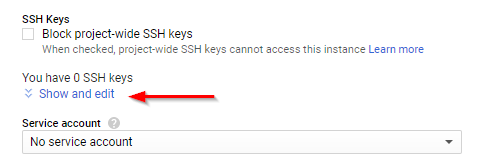
  • Scroll down the click Show and Edit
  • Paste the content of your local workstation id_rsa.pub file (/home/myuser/.ssh/id_rsa.pub) into the Enter public SSH key text area.
  • Click the save button.