Category Archives: Security

Guacamole server using Docker

version: "2"
services:
  postgresql:
    image: 'postgres:latest'
	container_name: guacamole_db
	ports:
      - 5432:5432
	environment:
      POSTGRES_USER: guacamole_postgres # The PostgreSQL user (useful to connect to the database)
      POSTGRES_PASSWORD: YourOwnPassword # The PostgreSQL password (useful to connect to the database)
      POSTGRES_DB: guacamole # The PostgreSQL default database (automatically created at first launch)
  guacd:
    image: "guacamole/guacd"
    container_name: guacd
    hostname: guacd
    restart: always
    volumes:
      - "/data/shared/guacamole/guacd/data:/data"
      - "/data/shared/guacamole/guacd/conf:/conf:ro"
    expose:
      - "4822"
    ports:
      - "4822:4822"
    network_mode: bridge

  guacamole:
    image: "guacamole/guacamole"
    container_name: guacamole
    hostname: guacamole
    restart: always
    volumes:
      - "/data/shared/guacamole/guacamole/guac-home:/data"
      - "/data/shared/guacamole/guacamole/conf:/conf:ro"
    expose:
      - "8080"
    ports:
      - "8088:8080"
    network_mode: bridge
    environment:
      - "GUACD_HOSTNAME=localhost"
      - "GUACD_PORT=4822"
      - "POSTGRES_PORT=5432"
      - "POSTGRES_DATABASE=guacamole"
      - "GUACAMOLE_HOME=/data"
      - "POSTGRES_USER=guacamole_postgres"
      - "POSTGRES_PASSWORD=YourOwnPassword"
      - "POSTGRES_HOSTNAME=localhost"

Go ahead and spin it

docker-compose up -d

Now we need to init the database

docker run --rm guacamole/guacamole /opt/guacamole/bin/initdb.sh --postgresql > initdb.sql
docker container cp initdb.sql guacamole_db:/
docker container exec -it guacamole_db psql --dbname=guacamole --username guacamole_postgres -f /initdb.sql

Below the old way version (not working properly regarding the guacacd part)

Here a really quick draft to setup a Guacamole RDP server using a docker container and PostgreSQL

# Get the latest image
docker pull guacamole/guacamole

# Create volumes to persist data
docker volume create guacamole-vol-app
docker volume create guacamole-vol-db

# Create the dedicated network
docker network create --driver bridge guacamole-net

Configure the database:

# Spin up the container
docker run --detach --restart unless-stopped -v guacamole-vol-db:/var/lib/postgresql/data --network guacamole-net --name gcm-db-01 -e POSTGRES_PASSWORD=aRandomPasswd postgres

# Connect to the container
docker exec -it gcm-db-01 bash

# Then to PostgreSQL
psql -U postgres

# Create the DB
CREATE DATABASE guacamole WITH ENCODING 'UTF8' LC_COLLATE='en_US.UTF-8' LC_CTYPE='en_US.UTF-8' TEMPLATE=template0;

create user guacamole_postgres with password 'randomPassword';
GRANT ALL PRIVILEGES ON DATABASE guacamole to guacamole_postgres;

# Quit
\q

# Quit the container
Ctrl+p then q

# The following command will generate a file to be used for DB initialization
docker run --rm guacamole/guacamole /opt/guacamole/bin/initdb.sh --postgres > initdb.sql


# Copy the file to the container
docker container cp initdb.sql gcm-db-01:/

# Execute the file
docker container exec -it gcm-db-01 psql --dbname=guacamole --username postgres -f /initdb.sql

Configure your container:

# Pull GuacaCD
docker pull guacamole/guacd

# Generate the GuacaCD proxy
docker run --name gcm-cd-01 --network guacamole-net -d guacamole/guacd 

docker run --name gcm-app-01 --network guacamole-net \
     -e POSTGRES_HOSTNAME=gcm-db-01 \
     -e POSTGRES_DATABASE=guacamole  \
     -e POSTGRES_USER=guacamole_user    \
     -e GUACD_HOSTNAME=gcm-cd-01 \
     -e TOTP_ENABLED=true \
     -e POSTGRES_PASSWORD=aRandomPasswd \
     -d -p 8003:8080 guacamole/guacamole

TOTP_ENABLED=true enable a WhateverAuthenticator app to add another level of security.

Setup OPNsense 20.7 for IPsec mobile VPN (AkA Road-Warrior)

Since I migrated my former PfSense appliance to OPNsense, I had to reconfigure many services. Today, I’ll explain how I configured it to connect your Android devices using the native IPsec client (Obviously, this should work with other mobile and device brands)

Note that the cipher suites and other security protocols used in this post are set according to what is available on my remote devices. Thus, you would be able to higher those protocols depending on your hardware support.

Configuring OPNsense

Mobile Clients

Access your OPNsense appliance, then go to VPN > IPsec > Mobile Clients and configure it using the following options. Note that I have listed only what that matters, feel free to play with those options.

  • Virtual IPv4 Address Pool: A brand new network to be used by your remote devices
  • DNS Servers: Set your local DNS servers here
  • Phase 2 PFS Group: let this off

Save and apply changes before moving on. You should see a “No Phase 1 found” or a similar message, if so, click on it to access the next step.

Tunnel Settings

Go to VPN > IPsec > Tunnel Settings to create your tunnel interface.

General information

Again, use the following elements to configure your phase 1:

  • Connection method: Start on traffic
  • Key Exchange version: v1 (v2 was not supported for Mobile client)
  •  Interface: WAN

Phase 1 proposal (Algorithms)

  • Encryption algorithm: AES 256
  • Hash algorithm: SHA256
  • DH key group: 2 (1024bits)
  • Install policy: checked (Let the other checkbox unchecked)

Save then apply your settings.

Phase 2 configuration

Go back to VPN > IPsec > Tunnel Settings

On the right side of the tunnel you just have created, you should see a + button, click on it:

  • Mode: Tunnel IPv4
  • Type:
    • Network: you will be able to set a global network (0.0.0.0/0) which will allow your devices to access all your different networks (like LAN and Internet)
    • LAN or any subnet you have: Your devices won’t be able to join any other subnet
  • Protocol: ESP (ESP is encryption, AH is authentication only)
  • Encryption algorithms: aes256gcm16
  • Hash algorithms: SHA512
  • PFS key group: off

Save the configuration, and apply it as always.

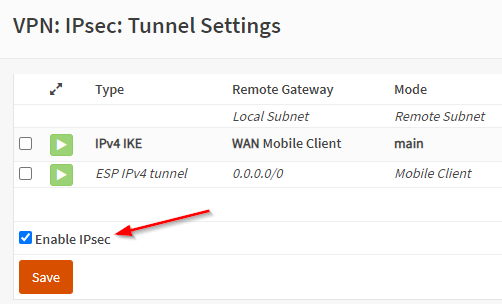
Finally, on the VPN > IPsec > Tunnel Settings page, click on the Enable IPsec button then save to actually start IPsec:

On the same page, you should see the green arrow telling you the service is running properly:

Top right of the Tunnel settings page

Firewall configuration

We need to configure the firewall by adding rules and NAT policy.

Rules

WAN interface

We need to allow our remote clients to access our IPsec server, to do so, create the following rules:

IPsec ESP
  • Protocol: IPv4 ESP
  • Other settings: *
IPsec ISAKMP
  • Protocol: IPv4 UDP
  • Port: 500 (ISAKMP)
  • Other settings: *
IPsec NAT-T
  • Protocol: IPv4 TCP/UDP
  • Port: 4500 (IPsec NAT-T)
  • Other settings: *

IPsec interface

IPsec to LAN net

Here you have to decide which protocols you want to allow from your remote clients to your LAN devices, don’t forget to allow at least DNS if your custom DNS servers are hosted on that subnet.

IPsec to WAN net

Same as above, you’re in charge to choose which services you want to authorize.

NAT

We need to update the default configuration in order to enable NAT between our IPsec interface and the WAN interface. To do so, open the Firewall > NAT > Outbound

  1. If not already done, select “Hybrid outbound NAT rule generation” then apply changes to be able to add manual rules.
  2. Add a new rule with the following information:
    • Interface: WAN
    • Source address: your remote devices VPN network (the one you created at the beginning)

Android configuration

Here an example using a Galaxy S7 and its native VPN client.

  • Go to Settings > Connections > More connection settings > VPN
  • Click Add VPN
  • Configure your VPN with the following:
    • Name: it’s up to you
    • Type: IPSec Xauth PSK
    • Server Address: if using a DNS name, you won’t be able to use the Always-on feature, so use your static public IP if you are lucky enough
    • IPsec pre-shared key: use the key you have choose before
    • Username: this depends on the Authentication backend you selected

How to troubleshoot ?

If you go to VPN> IPsec > Log File you will be able to see if your remote devices are hitting your server, and see issues with proposals mismatch, authentication issues and more.

I would also recommend not to be too strict at the beginning, regarding the cipher suites and other security protocols. Set them wide then tweak your configuration one security setting at a time.

If you can reach your LAN devices but Internet when connected, check the NAT and firewall rules.

How to control your Windows Server’s cipher suites with IIS Crypto

When you are in charge of fixing vulnerabilities or troubleshooting software encrypted communication issues, you often have to deal with upgrading or fixing cipher suites. It’s often complex depending on the vendor, to access, customize or even know which cipher suites are available.

For Windows Server, a company called Nartac provides a free tool called IIS Crypto, that will help you configure your servers security in a snap!

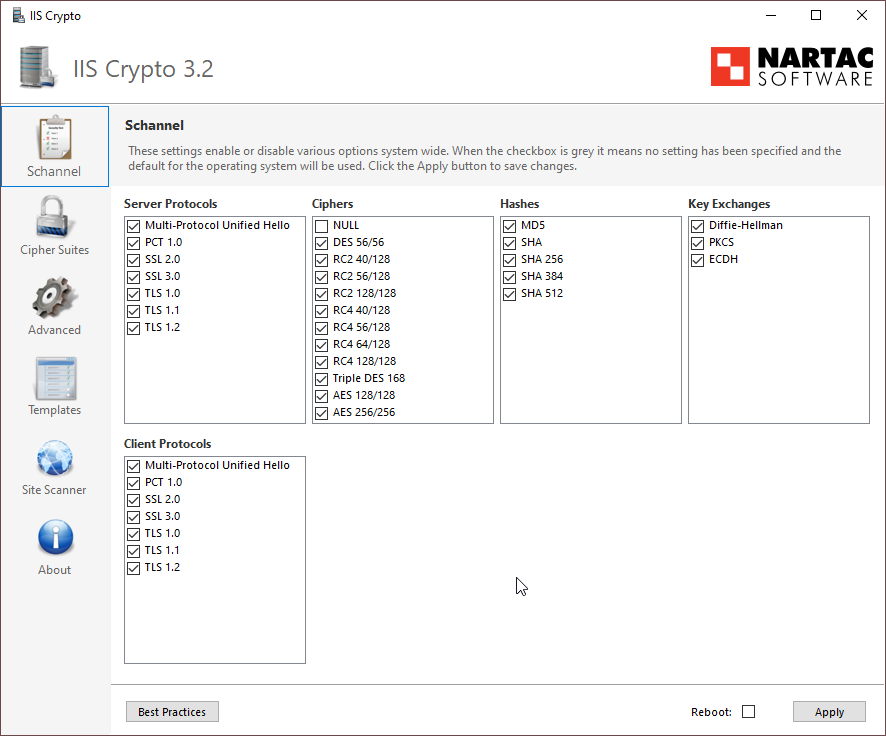
Using IIS Crypto with a GUI

Nartac offers two versions of its tool, the one which come the GUI and the CLI version. I would recommand to install the GUI version to get familiar with it, you will see which suites and schannel are available on your system, understand how the product works, and finally you will be able to create custom templates to use with the GUI or, even better, with the CLI.

IIS Crypto GUI

IIS Crypto CLI

Once you’re comfortable with IIS Crypto, and especially if you have many servers to manage, I would highly recommend going with the CLI version.

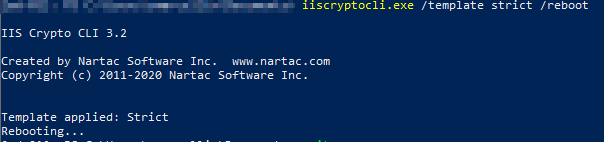
You can deploy IIS Crypto through chocolatey and then apply a pre-existing template, or a custom one depending on your needs:

Here, I apply an embedded template (Strict) while asking for a reboot for this template to be applied immediately

Nessus: Replace the default GUI Certificate with a custom one

Usually, providers don’t spend much time on offering a simple and detailed way to update the self-signed certificate they provide with their appliances.

I was disapointed to see that Nessus, which will basically complains all the time about the wrong certificate mismatch it will discover on your networkd, doesn’t provide an easy way to replace its own ugly certificate.

The funny part is, you will see it at least once within the scan result, because of this wrong certificate, what a shame isn’t it?!

Generate a custom cert and a key, using Base 64 encoding

As the title says, you can use whatever way you want to generate a new .cert and a new .key file, that’s mandatory.

The following is related to my own way to do it, I’m writing that here for the records, I suggest you to skip to the next heading.

  • Use OPNSense Certificate tool to generate a CSR
  • Submit the CSR to the AD CS certsrv tool and get your certificate, base 64 encoded
  • Download from OPNSense the associated .key

Install the certificate and the key on your Nessus server

First, stop the Nessus daemon, on Ubuntu 20.04:

/etc/init.d/nessusd stop

Edit the curent certificate with the following command:

vim /opt/nessus/com/nessus/CA/servercert.pem

Remove its content, and replace it with the content of your new certificate.

Then, edit the former key file, with the command below:

vim /opt/nessus/var/nessus/CA/serverkey.pem

Do the same thing, replace the content with the one contained on your key file.

Eventually, start the Nessus server to get your server back online:

/etc/init.d/nessusd start

That was not complex, but I would have appreciate:

  • A way to generate the CSR from the Nessus GUI
  • An obviously, a way to import the certificate as well

How to fix “CSP Loading” when using web enrollment through Windows AD CS

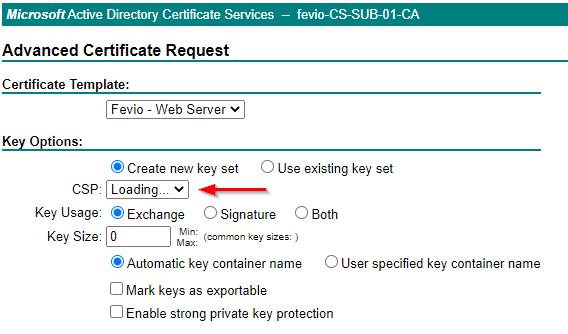
When I tried to generate a new certificate for one of my webservers, I encountered an issue with the certsrv page, which was stuck with a CSP loading message:

You can wait forever here, nothing will happen

It seems related to a missmatch between the Internet Explorer security options and the security zone where your certsrv site is placed.

There a different ways to fix that, here the one that fits my needs:

  • Connect to a remote session to My-Subordinate-Server
  • Open Internet explorer
  • Browse to https://my-subordinate-ca/certsrv
  • Open Internet Explore settings
  • Got to Security Tab
  • Click on Trusted Sites
  • Add https://my-subordinate-ca/certsrv
  • You’re done!

Raspbian: Disable mDNS / ZeroConf

Using PiHole on a Raspberry Pi, powered by Raspian, I got to clear only one vulnerability spotted by my security scanner.

This vulnerability was about mDNS / ZeroConf, here the details:

Description

The remote service understands the Bonjour (also known as ZeroConf or mDNS) protocol, which allows anyone to uncover information from the remote host such as its operating system type and exact version, its hostname, and the list of services it is running.

This plugin attempts to discover mDNS used by hosts that are not on the network segment on which Nessus resides.

Risk Information

Risk Factor: MediumCVSS Base Score: 5.0CVSS Vector: CVSS2#AV:N/AC:L/Au:N/C:P/I:N/A:N

Solution

One of them is to filter incoming traffic to UDP port 5353, if desired. As I don’t need that feature, I decided to disable it for good.

Edit avahi-daemon.conf file:

vi /etc/avahi/avahi-daemon.conf

Find and replace yes by no on the following lines:

[...]
use-ipv4=no
use-ipv6=no
[...]

Then, reboot your Pi and launch a remediation scan to confirm the workaround.

Nessus Essentials

Nessus is a security product provided by Tenable, that will scan networks in order to find vulnerabilities among hardware, servers, and more. Tenable provides a free version of this product, called Nessus-Essentials, which allow you the following for free:

  • Asset discovery scanning limited to 16 IPs for vulnerability assessment.
  • The power of Tenable Research. Our research team works closely with the security community to discover new vulnerabilities and provide insights into published vulnerabilities to help organizations quickly detect them in their environment. These insights are built into Nessus Essentials to keep you up to date on the latest vulnerabilities. 
  • No time limit for usage. Use Nessus Essentials for as long as it meets your needs. Should you require advanced features and the ability to scan more than 16 IPs, you can seamlessly upgrade to Nessus Professional.
  • Access to the Nessus training curriculum. Enjoy access to Tenable University training classes to help you understand and take full advantage of Nessus Essentials.  
  • Community Engagement. Engage with your peers and the Tenable team in the Tenable Community to get your questions answered quickly and get tips and tricks for optimizing your product. 

Prerequisites

In order to scan up to 50,000 hosts per scan (Huge for a home lab or small office), the prerequisites provided by Tenable are the following (Nessus 8.11.0):

CPU: 4 2GHz cores

Memory: 4 GB RAM (8 GB RAM recommended)

Disk space: 30 GB, not including space used by the host operating system

A Windows or Linux server (I have chosen to run it on the latest Ubuntu 20.04 LTS)

After having installed the .deb on your Linux server

In order to start Nessus, run the following command:

/etc/init.d/nessusd start

Then go to https://nessusIPaddress:8834/ to configure your scanner

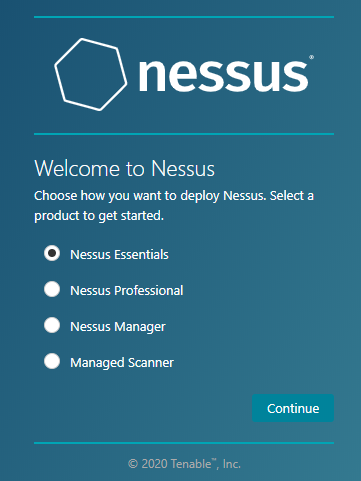
After Nessus has been initialized, select Essentials:

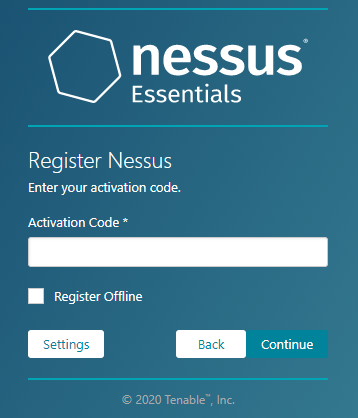
Skip the next step if you have already an activation code, then provide it:

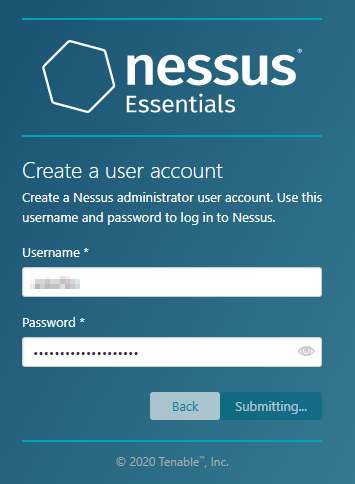
Create a new account for the first scanner administrator

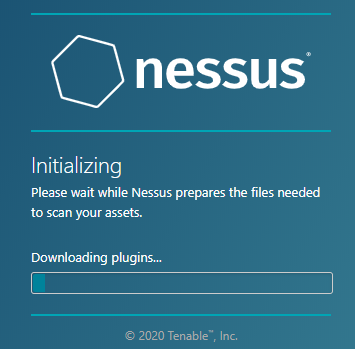
Then wait until the installation is finished:

Plugins will be compiled and that can take a while depending on your server

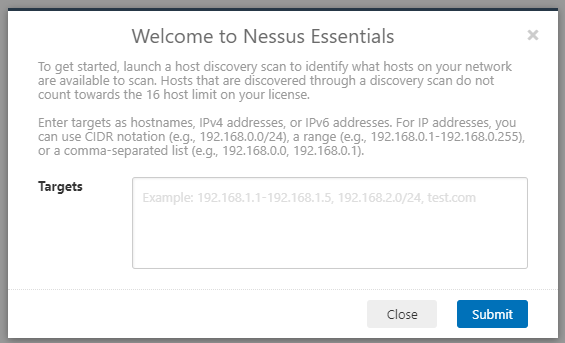
After you logged in, you will have to decide which IPs to scan:

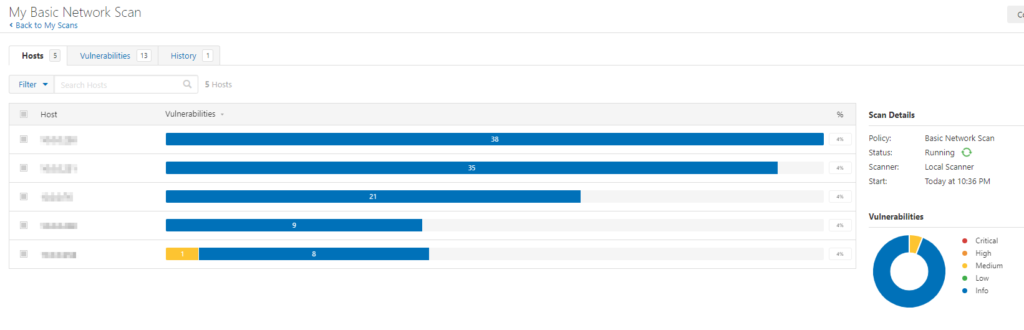
Then, Nessus will scan the networks you gave it, find devices and computers, and you will be ask to choose the 16 IPs you want to scan. The scan will then starts and the result will be shown like this:

Dealing with cipher suites

A part of my daily job is to improve application security, at large. Doing so, I often have to deal with cipher suites hardening.

This task is not complex at all, yet you have to manage different libraries that are using different naming conventions (RFC, GnuTLS, OpenSSL, etc.). You can always count on the documentation or your favorite search engine, nonetheless, depending on their quality, that will make you waste a lot of time.

Fortunately, I found a very handy website, created by Hans Christian Rudolph and Nils Grundmann, which gives you much information about those libraries, cipher suites, protocols, etc. It also offers an API, yet that still a work in progress. Long story short, anytime you need to deal with cipher suite, you should take a look at it:

https://ciphersuite.info/

Analyzing your website encryption strength

During a recent audit, I had to harden the cipher suites used to secure a worldwide insurance application. The most important part of this task was to help adjust our customers, ensuring their infrastructure to be compatible with our future settings. During the whole project, I used different methods to double-check the settings applied to our differents tests and staging environments (packet analyzes, vulnerability scanner, etc.). I found out that Qualys, one of our security providers, has a free website that can scan a website and provide an interesting report:

https://www.ssllabs.com/ssltest/

There are a lot of similar services ( https://www.immuniweb.com/ssl/ for instance), with more or less the same functionality, but that one was particularly convenient to use.

Manage your passwords in a fancy manner with Bitwarden

Obviously, we all deal with more and more services every day, while some of them are confidential (Bank accounts, social numbers, etc.), others could be shared with your friends, colleagues or family (Netflix for instance, is a perfect example).

Here come software called passwords manager, with them you will be able to:

  • Store all your credentials under a single account, which will be protected by a 2FA. That way, you only have to remember one strong passphrase, changing it from time to time though
  • Generate extremely strong passwords, compared to your puppy name for instance, with special chars, numbers, lower and upper case characters
  • Organize your accounts in different folders
  • Share some of them with your family and friends (depending on your subscription level)
  • Use the browser extension or the Android application to auto-fill application or web login prompts (Supports fingerprint authentication on compatible devices)

If you choose to go with the Cloud version, for a ridiculous fee of $1 a month, you will be able to access your credentials everywhere with your phone or any browser you trust.

For a small price, I’m not able to have pretty much the same features as the business-grade one we are using at my office. You will have to adjust to a new behavior: each time you have to create an account, use the random strong password generator then store it in your Bitwarden vault, that’s it!

https://bitwarden.com/