Windows Server: Add and configure a new DC server using PowerShell

Preconfiguration

After the server is freshly installed, we need to configure the following settings:

  • Setup the network properly, especially its static IP address
  • Setup the desired hostname
  • Setup the time configuration, especially the timezone, using NTP (optional)
  • Apply the latest updates before moving on to DC roles installation

Network setup

Connect remotely to your new server using PowerShell

Enter-PSSession -ComputerName COMPUTERNAME -Credential USER

Use the following article to configure the network, fix the IP address and remove the DHCP configuration: https://blog.fevio.fr/2005/04/windows-server-set-up-a-network-adapter-using-powershell/

Change the hostname

Rename-Computer -NewName "NewServerName"

Update the time settings

Follow this article: https://blog.fevio.fr/2000/09/windows-server-ntp-configuration/

Then, upgrade your server before moving on.

Directory Controller Configuration

From the previous remote PowerShell session, run the following command:

Install-WindowsFeature -Name AD-Domain-Services -IncludeManagementTools

For a WHOLE NEW FOREST/DOMAIN

Now, we install the corresponding roles, choose the different paths we want to use and tell we want to create a DNS server as well

Install-ADDSForest -DomainName "fevio.fr" -InstallDNS -DatabasePath "C:\NTDS" -SysvolPath "C:\SYSVOL" -LogPath "C:\Logs"

Or, to add a DC to an EXISTANT domain

Use the following command instead:

Install-ADDSDomainController -InstallDns -DatabasePath "C:\NTDS" -SysvolPath "C:\SYSVOL" -LogPath "C:\Logs" -Credential (Get-Credential "fevio.fr\Administrator") -DomainName "fevio.fr"

The server will then install the different roles required, including the DNS part, and reboot after the process ends.

Note that, running repadmin.exe /replsummary through a remote PS shell will fail, to check the replication status you will need to run those commands from the local terminal of your server, or through a remote desktop session for a non-core server.

Analyzing your website encryption strength

During a recent audit, I had to harden the cipher suites used to secure a worldwide insurance application. The most important part of this task was to help adjust our customers, ensuring their infrastructure to be compatible with our future settings. During the whole project, I used different methods to double-check the settings applied to our differents tests and staging environments (packet analyzes, vulnerability scanner, etc.). I found out that Qualys, one of our security providers, has a free website that can scan a website and provide an interesting report:

https://www.ssllabs.com/ssltest/

There are a lot of similar services ( https://www.immuniweb.com/ssl/ for instance), with more or less the same functionality, but that one was particularly convenient to use.

How to convert certificates format from one to another

Often, especially when dealing with both Windows and Linux servers, I have to convert from a format to another. Here are some commands to do so

CRT to PEM

Using Openssl on Windows 10 (Might be compatible with Linux machines as well, but you know, sometimes you need to adjust commands)

openssl x509 -in .\cs-root-01_CS-ROOT-01-CA.crt -inform der -outform pem -out myCert.pem

Manage your passwords in a fancy manner with Bitwarden

Obviously, we all deal with more and more services every day, while some of them are confidential (Bank accounts, social numbers, etc.), others could be shared with your friends, colleagues or family (Netflix for instance, is a perfect example).

Here come software called passwords manager, with them you will be able to:

  • Store all your credentials under a single account, which will be protected by a 2FA. That way, you only have to remember one strong passphrase, changing it from time to time though
  • Generate extremely strong passwords, compared to your puppy name for instance, with special chars, numbers, lower and upper case characters
  • Organize your accounts in different folders
  • Share some of them with your family and friends (depending on your subscription level)
  • Use the browser extension or the Android application to auto-fill application or web login prompts (Supports fingerprint authentication on compatible devices)

If you choose to go with the Cloud version, for a ridiculous fee of $1 a month, you will be able to access your credentials everywhere with your phone or any browser you trust.

For a small price, I’m not able to have pretty much the same features as the business-grade one we are using at my office. You will have to adjust to a new behavior: each time you have to create an account, use the random strong password generator then store it in your Bitwarden vault, that’s it!

https://bitwarden.com/

Google Cloud Platform, setup remote SSH connection

After you have created a new Linux instance, you might want to remote connect to it from your local workstation. There are several ways to do that, like using the Gcloud command:

gcloud beta compute ssh --zone "europe-west6-a" "my-instance-01" --project "my-project-6847321"

However, if you want to access your instance a more classical way, you might want to allow a regular SSH session to be established.

In order to allow a classic SSH session:

  • Go to the Google Cloud Platform Web Console
  • Open Computer Engine
  • Click on VM instances
  • Click on the VM you want access to
  • Click Edit
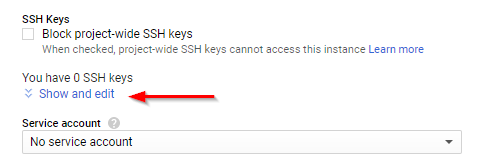
  • Scroll down the click Show and Edit
  • Paste the content of your local workstation id_rsa.pub file (/home/myuser/.ssh/id_rsa.pub) into the Enter public SSH key text area.
  • Click the save button.

Hyper-V on Windows 10: quick notes

It’s been really handy to be able to run virtual machines on regular Windows 10 machines, thanks to Hyper-v. However, I had some difficulties at the beginning because a lack of polishing about this feature. Here are some tips that can help.

Error when trying to start a new VM after its creation

The first issue I got after I had created my first VM, was make it starts! It could seem silly, however, for some reasons, when you click on “start VM” from the Hyper-V manager, the connector is not launched with administrator rights, hence it won’t start the VM with a weird error message.

The easiest way to workaround this, is to find and create a shortcut leading directly to , which is located here:

C:\Windows\System32\vmconnect.exe

Note that, virtmgmt.msc, is also located in that folder.

You will just have to run that exe with administration rights to get back on business!

GCP setup on Ubuntu servers and Terraform example

First, install the repository, GPG key, and install the Google Cloud SDK

# Add the Cloud SDK distribution URI as a package source
echo "deb http://packages.cloud.google.com/apt cloud-sdk main" | sudo tee -a /etc/apt/sources.list.d/google-cloud-sdk.list

# Import the Google Cloud Platform public key
curl https://packages.cloud.google.com/apt/doc/apt-key.gpg | sudo apt-key add -

# Update the package list and install the Cloud SDK
sudo apt-get update && sudo apt-get install google-cloud-sdk

Init the GCP SDK

On desktop workstations, you can use the regular gcloud init. However, on console-only systems, you will need to use the following command:

gcloud init --console-only

You will be asked to authenticate, then you will have to copy/paste an URL in your browser (Even if your are working remotely on another server):

Then, pick the project you want to work with, and set if ask, the default region (europe-west6-a for Zurich for instance).

Configure Terraform

Go to a clean folder on your Linux server, then edit a main.tf file with the following:

provider "google" {
  credentials = file("account.json")
  project     = "my-project-id"
  region      = "us-central1"
}

resource "google_compute_project_default_network_tier" "default" {
  network_tier = "PREMIUM"
}

Note that we set the tier to STANDARD, you can use PREMIUM depending on your needs.

Then, create the account.json and paste the content of the key file you have created.

Eventually, run the following command to initialize your project:

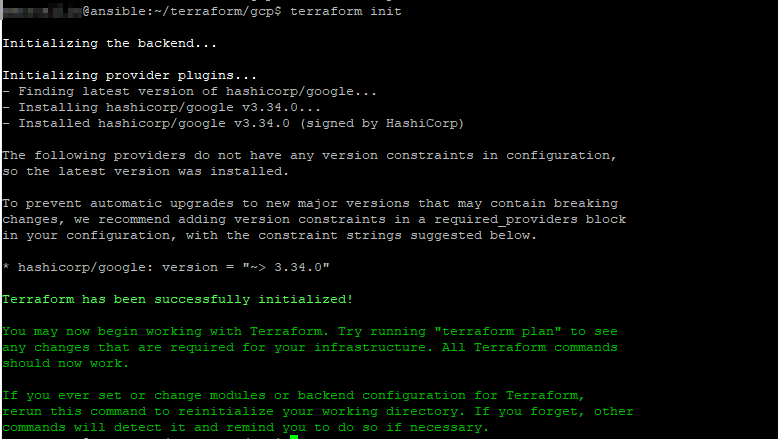
terraform init

And you should end with a similar screen:

Example: create a vm instance in your project

Within your Terraform project folder, create beside the main.tf, a new file called whatever you want, but related to the instance you want to create, with the following content:

resource "google_compute_instance" "vm_instance" {
  name         = "my-instance-01"
  machine_type = "f1-micro"
  zone         = "europe-west6-a"

  boot_disk {
    initialize_params {
      image = "ubuntu-2004-focal-v20200720"
    }
  }

  network_interface {
    # A default network is created for all GCP projects
    network = "default"
    access_config {
    }
  }
}

This file defines a f1-micro instance located in europe-west6-a, running on ubuntu 20.04, with a default network configuration.

To check what is going to be created, run the command below:

terraform plan

To actually apply this plan, run the following command:

terraform apply
If all good, you should see that screen!

Strongswan, create an Site-To-Site IPsec tunnel to OPNsense

Strongswan server configuration

First, install the related package

apt install strongswan -y

Generate a PSK to be used on both ends (Save it to a secure place to avoid loosing it):

openssl rand -base64 64

You will get something like this:

YGOnBqAi0FOZNC36gg5jy9B9ROZavhMPDMDLXfknZdbQrWm+sRV200hkFsp6Ja4Y
7uDWFbljD2Hr36c3SQC27w==

Edit /etc/sysctl.conf and add the following lines at the botton:

net.ipv4.ip_forward = 1
net.ipv4.conf.all.accept_redirects = 0
net.ipv4.conf.all.send_redirects = 0

Then run this command to apply those change:

sysctl -p /etc/sysctl.conf

ipsec.secrets

The file /etc/ipsec.secrets contains the PSK for your tunnels, edit it accordingly:

# This file holds shared secrets or RSA private keys for authentication.
  
# RSA private key for this host, authenticating it to any other host
# which knows the public part.
vpn.mydomain.fr : PSK "YGOnBqAi0FOZNC36gg5jy9B9ROZavhMPDMDLXfknZdbQrWm+sRV200hkFsp6Ja4Y7uDWFbljD2Hr36c3SQC27w=="

ipsec.conf

The file /etc/ipsec.conf contains the tunnels configuration details:

# ipsec.conf - strongSwan IPsec configuration file
  
# basic configuration
config setup
        charondebug="all"
        uniqueids=yes
        strictcrlpolicy=no

# Add connections here.
# Base information used as template
conn sts-base
    authby=secret
    fragmentation=yes
    dpdaction=restart
    ike=aes128-sha256-curve25519
    esp=aes256gcm16-curve25519!
    keyingtries=1
    leftid=1.1.1.1

# OPNsense connection
conn vpn-01
    also=sts-base
    keyexchange=ikev2
    leftsubnet=10.0.0.0/32
    rightsubnet=192.168.0.0/24
    # for this to work, DNS must be usable and working.
    right=%vpn.mydomain.fr
    auto=start

Here, we have defined a template connection that holds the common tunnel settings like IKE settings. In addition, we defined the actual OPNsense connection. Note that we can define multiple left or right networks using comma separated networks.

OPNsense configuration

Now it’s about configuring our local OPNsense, which is really easy too. Just follow the next steps:

Go to VPN > IPsec > Tunnel Settings

  • Add a new Phase 1 entry
    • Connection method: Start on traffic (This side of the tunnel will rule the tunnel connection)
    • Key exchange: v2
    • Interface: WAN
    • Remote gateway: the public IP address of your remote Strongwan server
    • Authentication method: Mutual PSK
    • My identifier: I chose Distinguished name and set my public IP address DNS name here.
    • Peer identifier: Peer IP address (that correspond to what we set on the strongwan server, but feel free to adapt your configuration)
    • Encryption algorithm: 256 bit AES-GCM with 128 bit ICV
    • Hash algorithm: SHA512
    • DH key group: 31 Elliptic curve 25519
    • Lifetime: 28800
    • Install policy: checked
    • NAT Traversal: Enable
  • Add a Phase 2 entry to the Phase 1 you just added
    • Mode: Tunnel IPv4
    • Type (local network): LAN subnet (because I wanted to allow only that subnet)
    • Type (remote network): Network
    • Address: your remote network address
    • Protocol: ESP
    • Encryption algorithms: aes256gcm16
    • Hash algorithms: SHA512
    • PFS key group: 31 (Elliptic Curve 25519)

Strongswan basic commands

Now you all set, I am sure you want to try it, here some commands in order to troubleshoot your tunnel on the Strongswan side:

Show Strongswan status:

ipsec status

# If all good, you should see something like that:
Security Associations (1 up, 0 connecting):
      vpn-01[2]: ESTABLISHED 4 minutes ago, 10.0.0.1[1.1.1.1]...2.2.2.2[vpn.mydomain.fr]
      vpn-01{2}:  INSTALLED, TUNNEL, reqid 1, ESP in UDP SPIs: c1e50580_i ce6450e0_o
      vpn-01{2}:   10.0.0.0/24 === 192.168.1.0/24

Restart Strongswan:

ipsec restart

Turn on a tunnel by its name (see your ipsec.conf configuration file):

ipsec up connectionName

Replace up by down to shutdown a tunnel.